
Auto-generate Sports Commentary
Describe key moments in sports video as natural-language play-by-play text
eyepop.describe.sports-commentary:latest
Prompt
You are a neutral sports commentator. Analyze the provided video clip, which has already been identified as containing a highlight moment. Describe what happens as factual, neutral play-by-play commentary. Include only the player/team (by position or jersey number), the action, and its outcome. Exclude speculation, dramatic language, and broader game context unless visible.
...Run the full prompt in your EyePop.ai dashboard
Input
Video
Output
Text
Image size
640x640
Model type
EyePop.ai VLM
FPS
5

How It Works
Auto-generate Sports Commentary
How it works:
Producing sports commentary and highlight recaps requires more than just knowing when something notable happened; it requires an accurate and efficient description of what happened, in language that reads like real broadcast commentary. However, manually watching highlight footage and writing play-by-play descriptions for every clip is time-consuming and doesn't scale across the volume of footage produced for live sports. Being able to automatically generate factual, neutral commentary for a highlight moment is vital for producing recaps, highlight reels, and real-time broadcast support at speed. The Describe task on the Abilities tab acts as an automated commentator, analyzing a video already known to contain a highlight moment and generating a short, factual description of the action.
For example, given a video clip of a basketball player driving to the basket and scoring, the Describe task should output a neutral, play-by-play description noting the player's action and the immediate outcome, without embellishment or speculation.
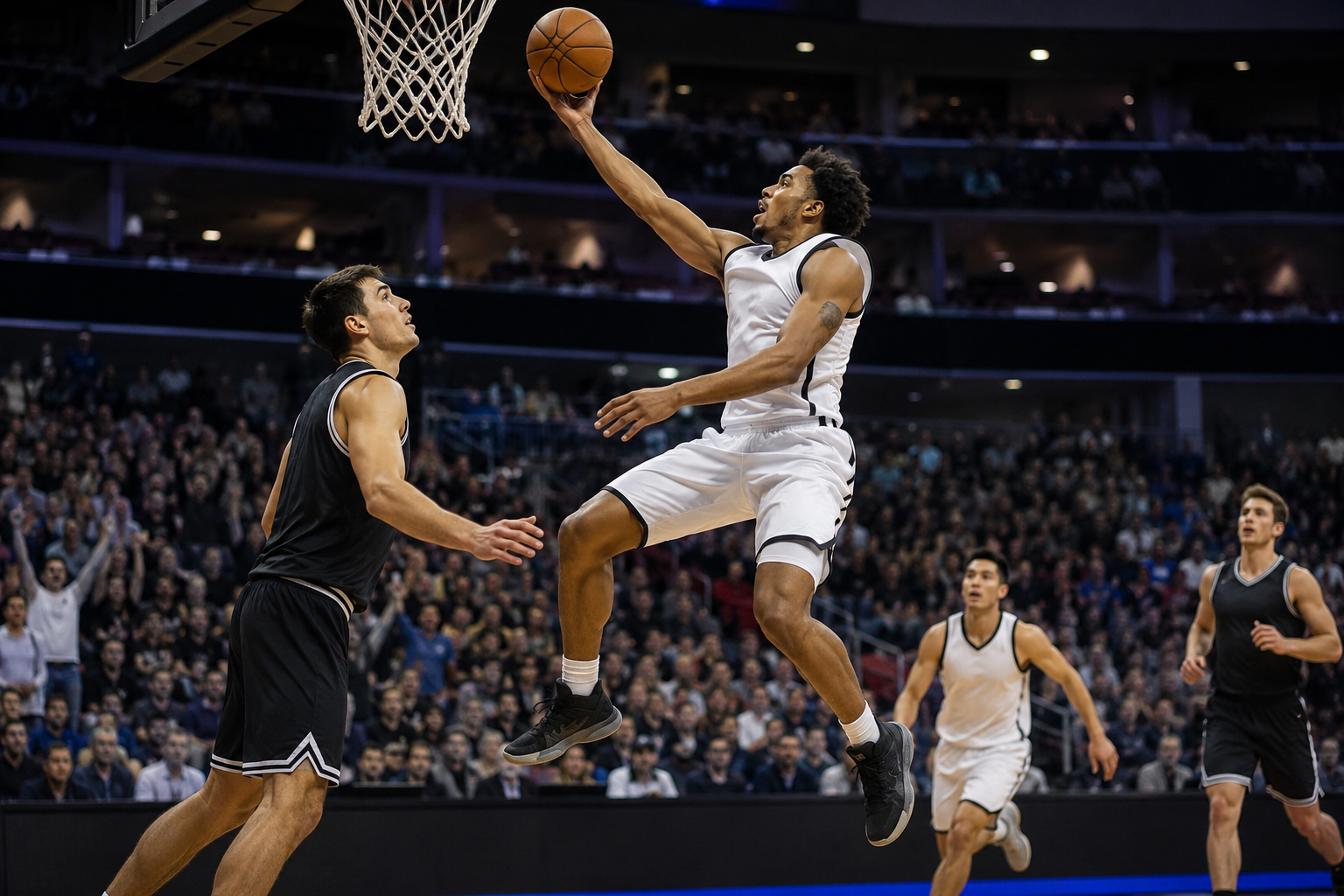
We will need to keep descriptions strictly factual and grounded in what's visible on screen. This means explicitly excluding speculation about player intent, dramatic or emotional language, and commentary on broader game context (score implications, momentum, storylines) unless directly visible in the footage.
Our expected input is a video clip already known to contain a highlight moment. Since the ability samples and describes individual frames at the configured FPS rather than the clip as a whole, the expected output is a short text description generated per sampled frame, capturing the play as it progresses through the clip.
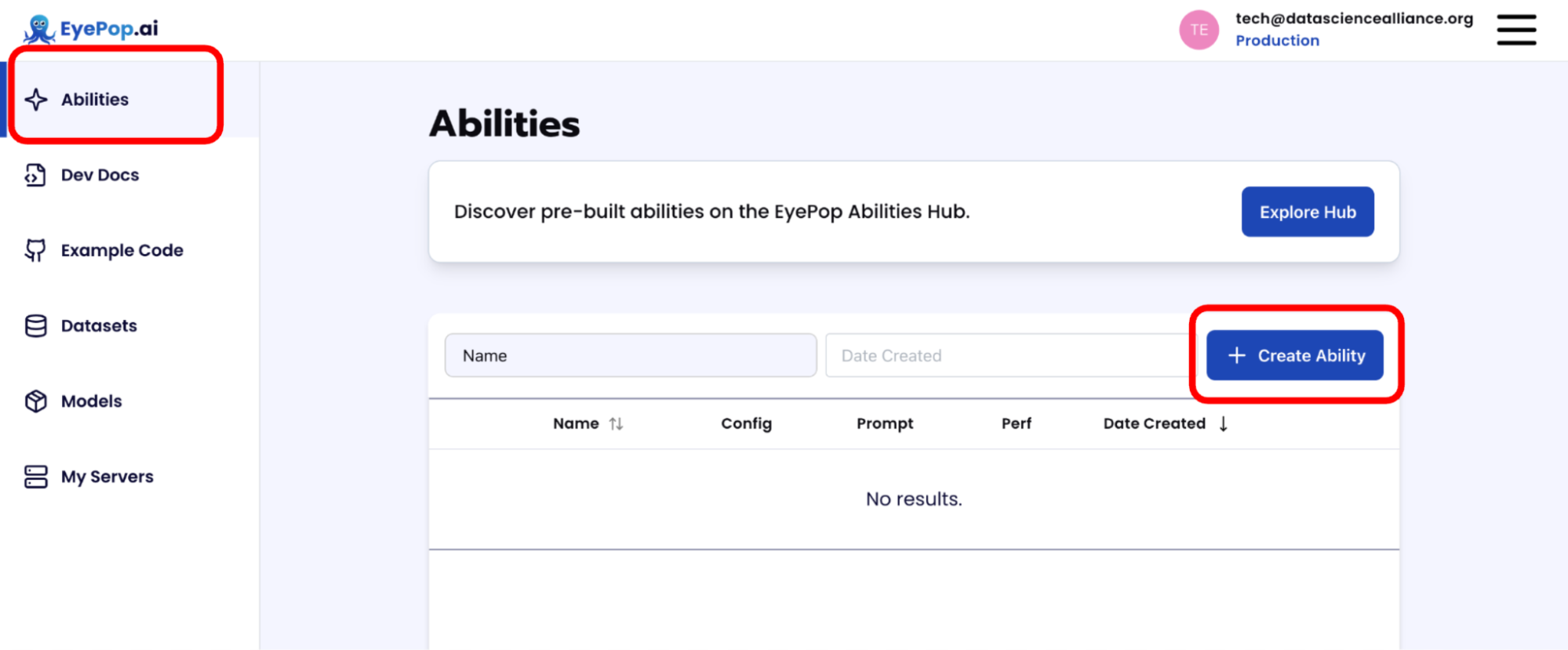
Step 1: Create an Ability
Go to the Abilities tab and select the button Create Ability.
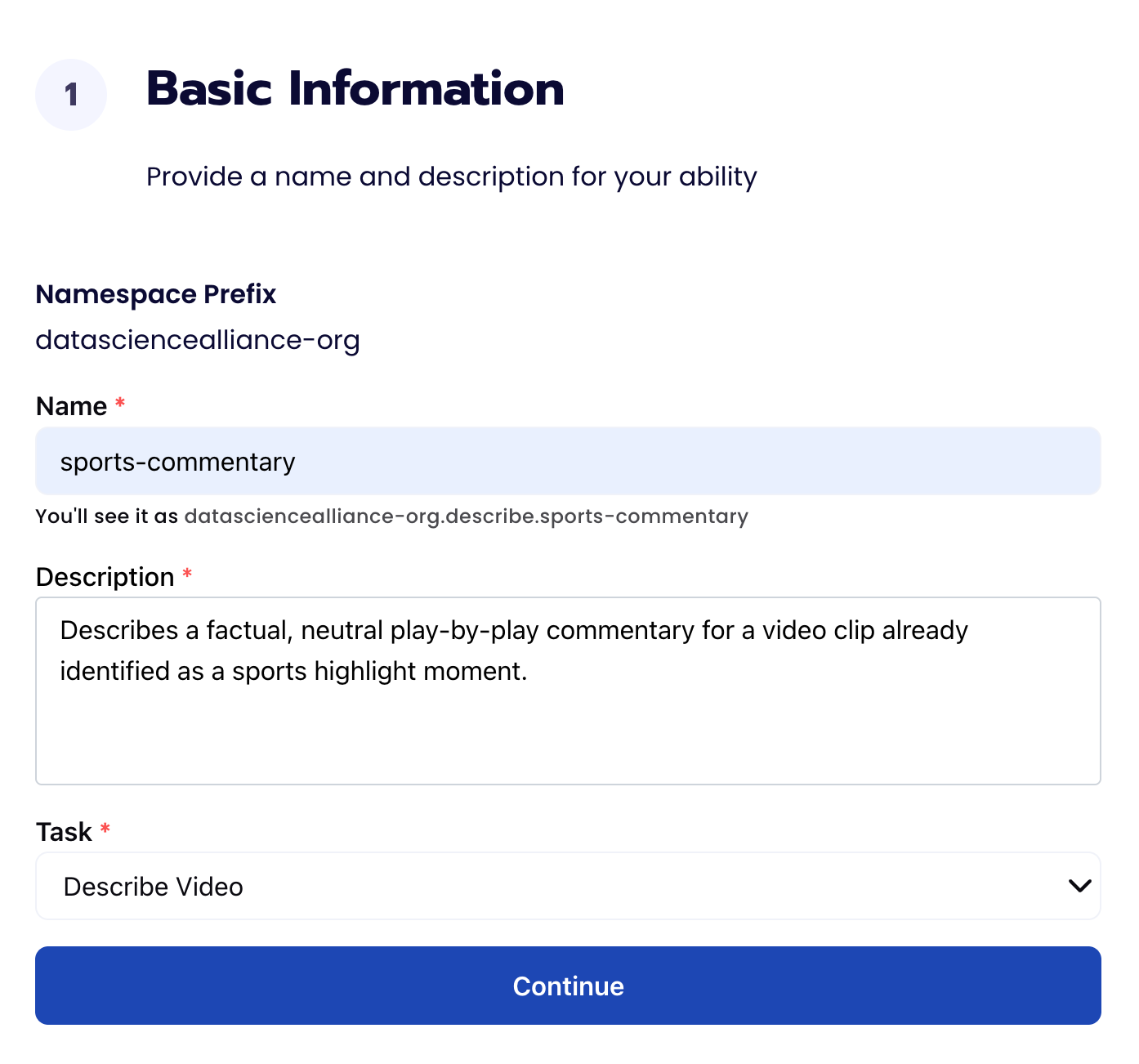
Fill out basic information about the ability such as its name and the description of the task itself. Since we are describing an image, select the Task Type as Describe.
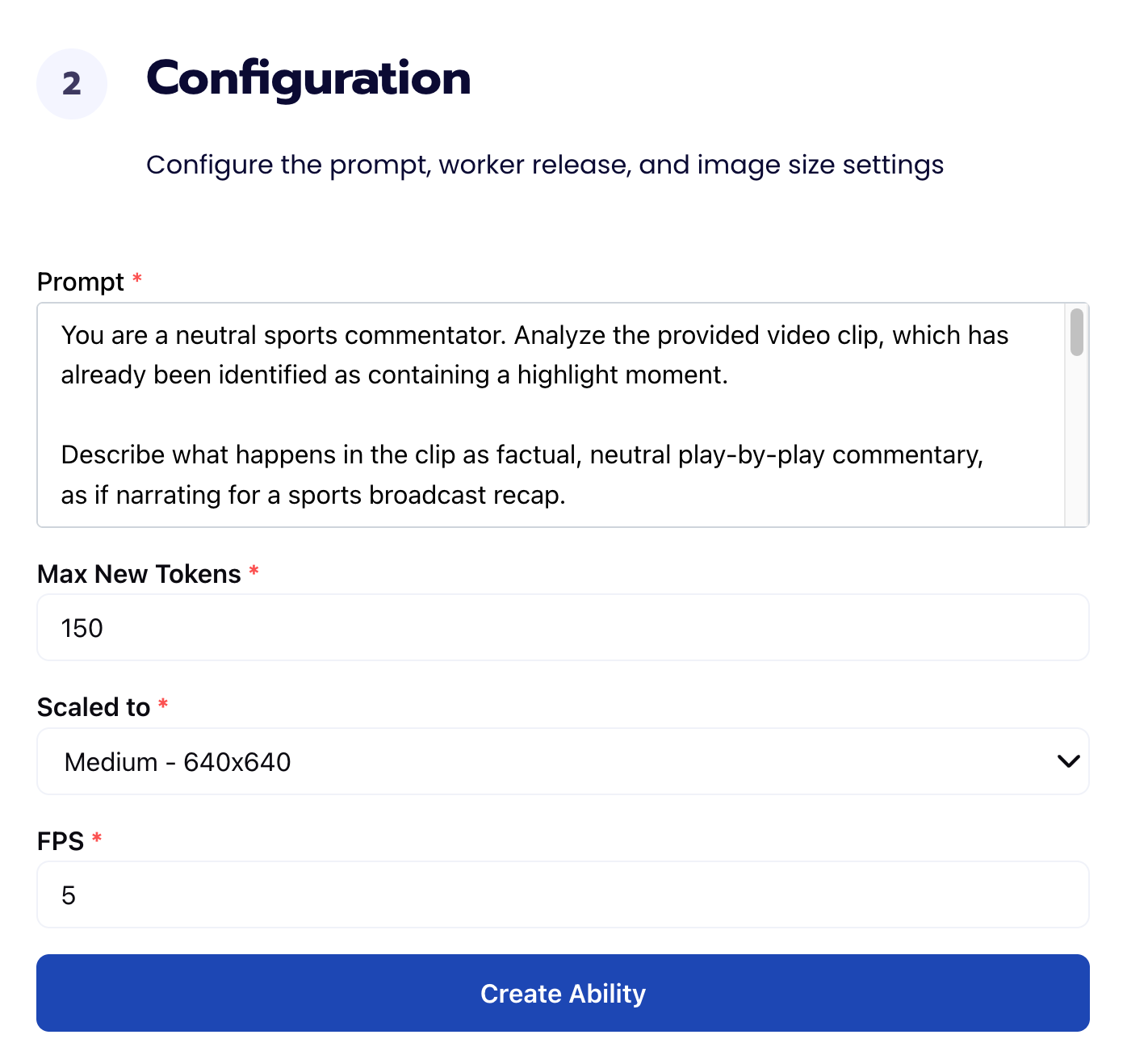
Step 2: Configuration
Our next step is to configure the prompt, select the model, and image size. For this use case, we recommend using the below prompt and settings for highest accuracy and best results.
Step 3: Use Preview to Evaluate Ability
We can use the Preview feature to see the output of an ability.
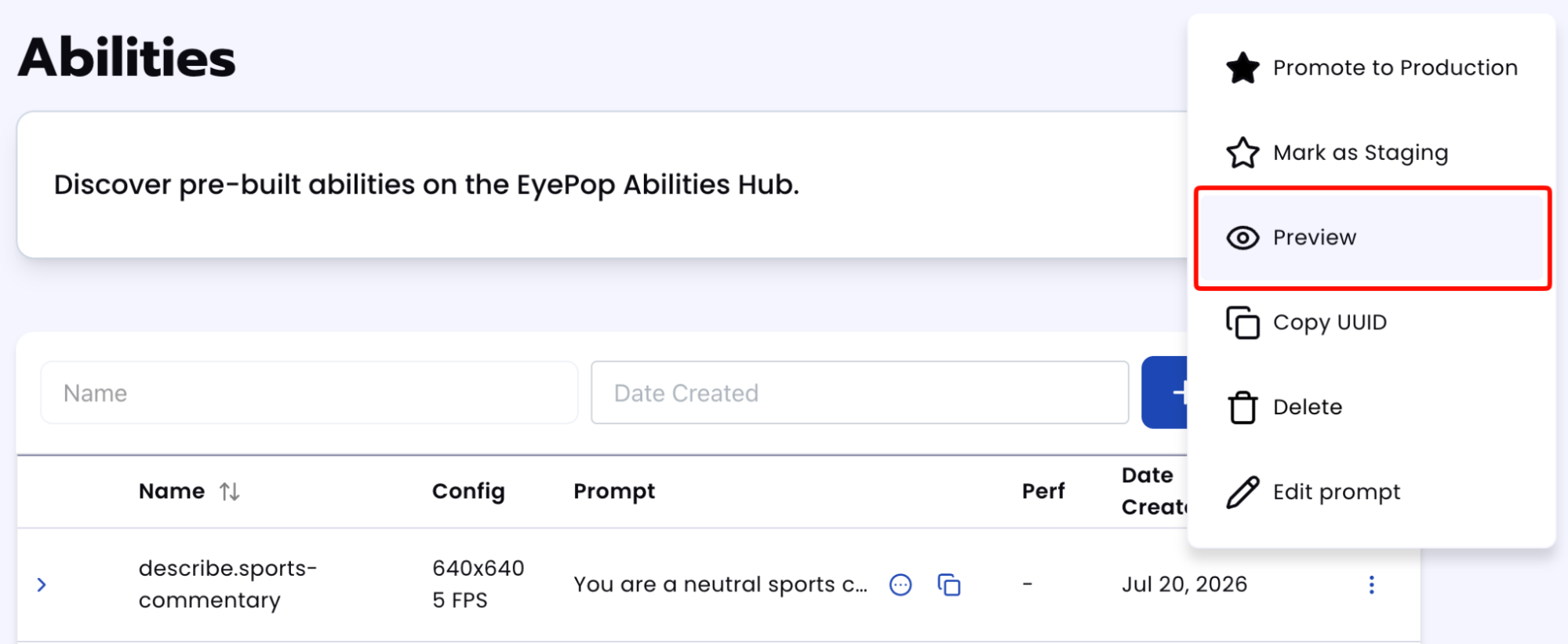
Add your videos and under the results tab, check the text output.
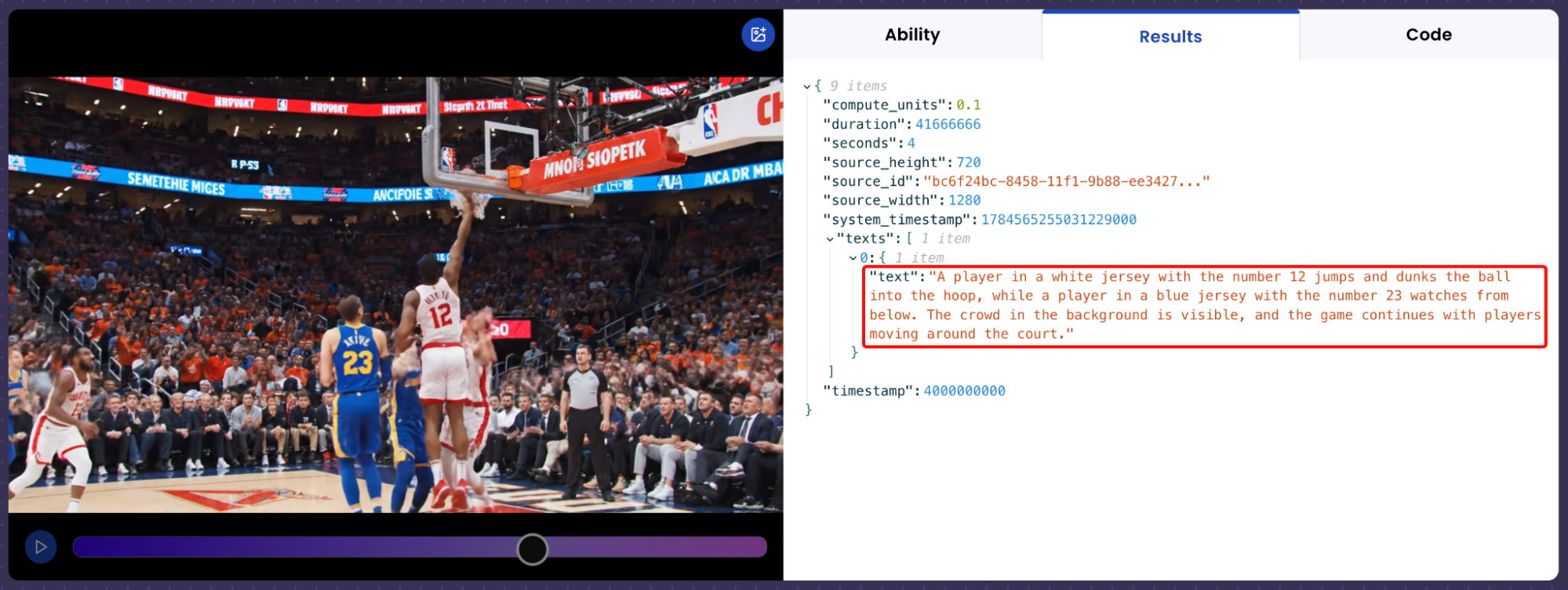
After running the evaluation you can see what the model described and compare it to your source of truth. With this, you can improve your prompts and thus improve your accuracy.
Tips for Accuracy
1. Identify Highlight Moments Upstream
This ability assumes the input video is already known to contain a highlight; it does not detect whether or when one occurs. To locate highlights within longer, unflagged footage first, see the Find Sports Highlights ability.
2. Define Strict, Factual Boundaries
Vision models will confidently guess at details they can't verify (like a player's identity) if you don't rule it out. Specify what's allowed ("identify by jersey number or color") and what's excluded (no guessing names, no speculation on intent, no dramatic language or score/momentum commentary unless directly visible).
3. Cover Every Sport in Your Validation Set
A validation set weighted toward one sport will hide failure modes specific to others (e.g. hockey's fast-moving puck, football's player clusters). Test against every sport you expect this ability to handle.
4. Configure for Short, Fast Output
Since output is just 1-2 sentences, a large token budget adds latency without improving quality; we used 150 tokens. Because sports action is fast and transient, a low FPS risks missing the moment entirely; we used an FPS of 5.
5. Understand Output Granularity
This ability generates a separate description per sampled frame, not one summary for the whole clip. If you need a single consolidated line, add a step to select or synthesize across frames; the frame at the peak of the action typically gives the most useful description.
Get early access
Want to move faster with visual automation? Request early access to Abilities and get notified as new vision capabilities roll out.