
B-Roll Autosuggestion
Automatically analyze the narrative and visual context of a scene

eyepop.describe.b-roll-autogenerator:latest
Prompt
You are an expert video editor and broadcast producer. Analyze the provided video footage to understand the core subject, tone, and narrative context.
Based on your analysis, write a description of the ideal...
...Run the full prompt in your EyePop.ai dashboard
Input
Video
Output
Text
Image size
512X512
Model type
EyePop.ai VLM

How It Works
Editing video content requires sourcing and/or generating clip relevant B-roll (supplemental footage) to overlay the primary clip. However, manually watching through hours of raw footage to brainstorm visual concepts, and manually writing video generation prompts can be inefficient and time-consuming. Being able to automatically analyze the narrative and visual context of a scene to suggest the perfect accompanying footage is vital for scaling video production and streamlining the editing pipeline. The Describe task on the Abilities tab can act as an automated creative assistant, analyzing the A-roll footage and generating a new prompt for synthetic B-roll creation.
For example, when a broadcast features an interview with an artist talking in their studio, the system should analyze the context and generate a new prompt perhaps describing a B-Roll clip of close-up shots of paintbrushes, colors mixing on a palette, and the artist’s studio environment..
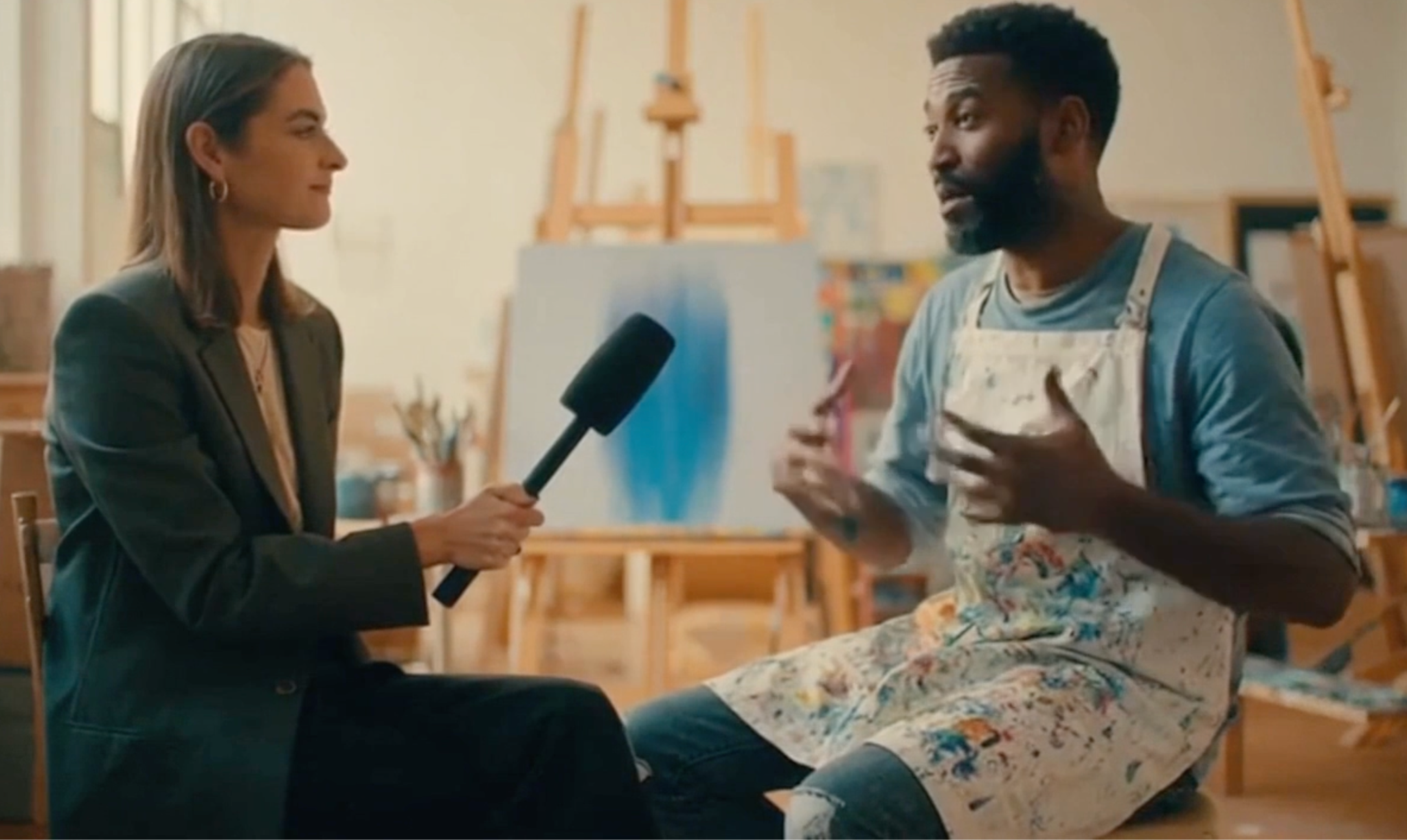
Our expected inputs are primary videos, and the expected output will be a single, descriptive text prompt formatted directly for a video generation model.
UI Tutorial
Step 1: Create an Ability
We can use the Describe ability with video in order to get a text description of the segment including damage and ask the model for an estimate on cost. Get early access to Abilities here >
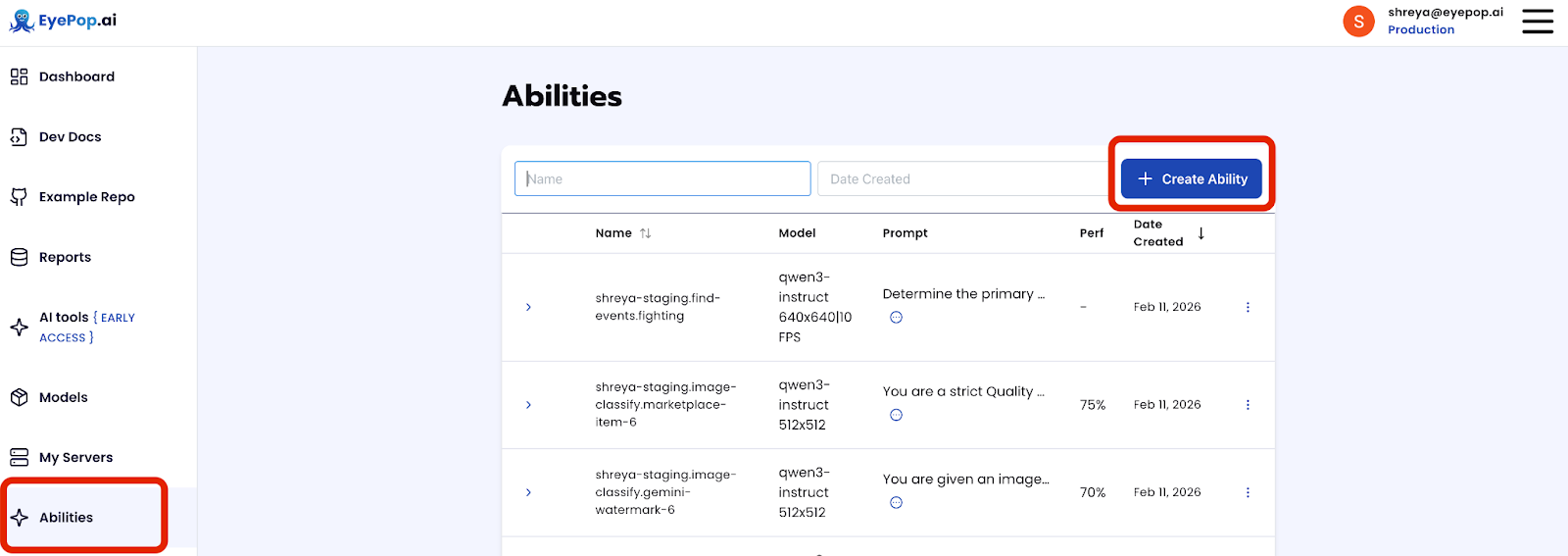
First, let’s define the ability:
ability_prototypes = [
   VlmAbilityCreate(
        name=f"{NAMESPACE_PREFIX}.describe.b-roll",
        description="Based on the inputted video create a prompt for b-roll footage",
        worker_release="qwen3-instruct",
        text_prompt=b-roll-prompt,
        transform_into=TransformInto(),
        config=InferRuntimeConfig(
            max_new_tokens=550,
            image_size=512
        ),
        is_public=False
    )
]
Next, we can actually create the ability with the following code:
with EyePopSdk.dataEndpoint(api_key=EYEPOP_API_KEY, account_id=EYEPOP_ACCOUNT_ID) as endpoint:
   for ability_prototype in ability_prototypes:
       ability_group = endpoint.create_vlm_ability_group(VlmAbilityGroupCreate(
           name=ability_prototype.name,
           description=ability_prototype.description,
           default_alias_name=ability_prototype.name,
       ))
       ability = endpoint.create_vlm_ability(
           create=ability_prototype,
           vlm_ability_group_uuid=ability_group.uuid,
       )
       ability = endpoint.publish_vlm_ability(
           vlm_ability_uuid=ability.uuid,
           alias_name=ability_prototype.name,
       )
       ability = endpoint.add_vlm_ability_alias(
           vlm_ability_uuid=ability.uuid,
           alias_name=ability_prototype.name,
           tag_name="latest"
       )
       print(f"created ability {ability.uuid} with alias entries {ability.alias_entries}")
Next, using the ability we have made we can generate B-Roll prompts for each frame.
from pathlib import Path


pop = Pop(components=[
   InferenceComponent(
       ability=f"{NAMESPACE_PREFIX}.describe.b-roll:latest"
   )
])


accumulated_descriptions = []


with EyePopSdk.workerEndpoint(api_key=EYEPOP_API_KEY) as endpoint:
  endpoint.set_pop(pop)
  sample_vid_path = Path("/content/sora-2_2026-04-16T18-45-06-329Z.mp4")
  job = endpoint.upload(sample_vid_path)

  while result := job.predict():
    texts = result.get("texts", [])
    for text_item in texts:
      raw_text = text_item.get("text", "")
      if raw_text:
        accumulated_descriptions.append(raw_text)


all_descriptions_string = "\n---\n".join(accumulated_descriptions)
Since the above code snippet will only concatenate the best prompt for each chunk of the video, we can use an LLM of choice to generate one principal prompt.
from google import genai


prompt = f"""
You are an expert video editor and prompt engineer for a video generation model.
I am providing you with multiple frame-by-frame AI descriptions of B-roll footage that should accompany a specific footage.


Because these are individual frame analyses from a video, the vision model generates slightly varying descriptions of the footage. Your primary job is to filter and determine the true "consensus" of what the B-roll should look like.


Please read through all the individual frame reports and synthesize them into ONE master video generation prompt based on these strict rules:


1. Find the Consensus: Identify the core subjects, actions, lighting, and cinematic styles that appear consistently across the majority of the frames.
2. Format for a Video Generator: Combine the consensus elements into a single, highly descriptive, comma-separated paragraph. Use strong visual keywords (e.g., "cinematic," "shallow depth of field," "4k," "slow motion").


Output ONLY the final master video generation prompt. Do not include introductory text, conversational filler, or formatting outside of the paragraph itself.


Here is the raw frame-by-frame data:
{all_descriptions_string}
"""


# Create the Gemini client and generate prompt
print("Synthesizing B-roll prompt with Gemini...")
client = genai.Client(api_key=GEMINI_API_KEY)


response = client.models.generate_content(
    model="gemini-2.5-flash",
    contents=prompt
)


# Print the result
print("\n=== B-ROLL GENERATION PROMPT ===")
print(response.text)
After running the code you can see what the model created as the prompt and compare it to your original video. With this, you can fine-tune your prompts and improve your accuracy.
Get early access
Want to move faster with visual automation? Request early access to Abilities and get notified as new vision capabilities roll out.