
Find Logos or Products in Images
Detect if a social post contains a specific branded item and create descriptions for each instance.
eyepop.describe.product-placement:latest
You are given an image of a social media post. Your task is to visually inspect the image and determine if a specific target product is present.
TARGET PRODUCT: A bright neon-blue aluminum soda can featuring a bold yellow lightning-bolt logo on the front.
Return ONLY valid...
...Run the full prompt in your EyePop.ai dashboard
Input
Image
Output
JSON
Model type
EyePop.ai VLM

How It Works
Tracking product placement and brand visibility in social media feeds means ensuring contracted items appear correctly and also discovering organic appearances in UGC (user-generated content). Manually scrubbing through hundreds of influencer posts and stories across platforms to track a single product is inefficient and unscalable. The Describe task on the Abilities tab can act as a tool, determining if a post contains a specific branded item and creates a description for each instance.
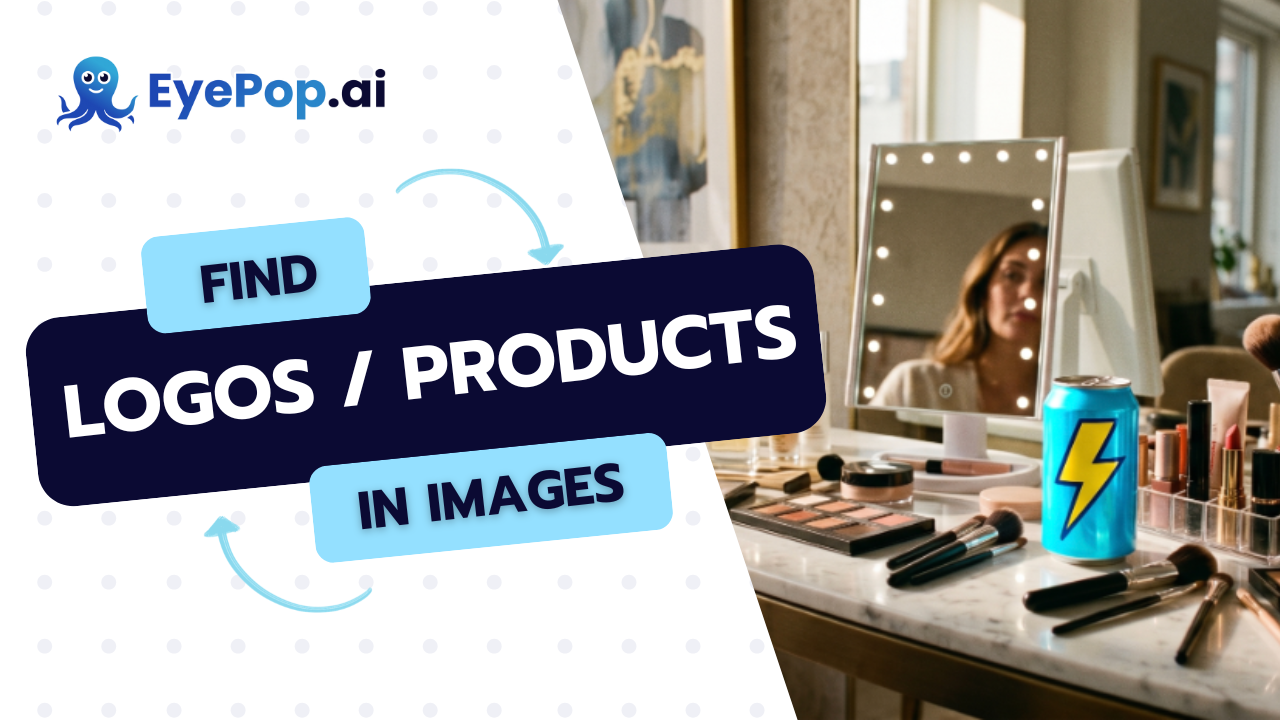
For example, whether during a sponsored post or an organic viral story, the photo should be flagged with the label target_product if it clearly shows the dedicated product, in this case, a neon-blue aluminum soda.
For example, if the image below is an influencer’s story post and our brand is the blue soda can, then the model should examine the image and categorize the data into specific fields. For example, the model will state target_product as found and set the description as ”The neon-blue aluminum soda can with a bold yellow lightning-bolt logo is sitting on a marble vanity table, surrounded by makeup brushes and palettes.”.

Our expected inputs are images of social media posts, and the expected output will be a structured text format, a JSON file for this example, containing the extracted information from the images.
UI Tutorial
First, let’s define the ability:
from eyepop import EyePopSdk
from eyepop.data.data_types import InferRuntimeConfig, VlmAbilityGroupCreate, VlmAbilityCreate, TransformInto
from eyepop.worker.worker_types import CropForward, ForwardComponent, FullForward, InferenceComponent, Pop
import json


ability_prototypes = [
   VlmAbilityCreate(
       name=f"{NAMESPACE_PREFIX}.describe.product-placement",
       description="Identify brand product placement in the images",
       worker_release="qwen3-instruct",
       text_prompt=product_prompt,
       transform_into=TransformInto(),
      config=InferRuntimeConfig(
          max_new_tokens=450,
          image_size=512
      ),
      is_public=False
  )
]
The prompt we can use here is:
"You are given an image of a social media post. Your task is to visually inspect the image and determine if a specific target product is present.
TARGET PRODUCT: A bright neon-blue aluminum soda can featuring a bold yellow lightning-bolt logo on the front.
Return ONLY valid..."
Next, we can actually create the ability with the following code:
with EyePopSdk.dataEndpoint(api_key=EYEPOP_API_KEY, account_id=EYEPOP_ACCOUNT_ID) as endpoint:
   for ability_prototype in ability_prototypes:
       ability_group = endpoint.create_vlm_ability_group(VlmAbilityGroupCreate(
           name=ability_prototype.name,
           description=ability_prototype.description,
           default_alias_name=ability_prototype.name,
       ))
       ability = endpoint.create_vlm_ability(
           create=ability_prototype,
           vlm_ability_group_uuid=ability_group.uuid,
       )
       ability = endpoint.publish_vlm_ability(
           vlm_ability_uuid=ability.uuid,
           alias_name=ability_prototype.name,
       )
       ability = endpoint.add_vlm_ability_alias(
           vlm_ability_uuid=ability.uuid,
           alias_name=ability_prototype.name,
           tag_name="latest"
       )
       print(f"created ability {ability.uuid} with alias entries {ability.alias_entries}")
That’s it! To run the prompt against an image here is some sample evaluation code:
from pathlib import Path


pop = Pop(components=[
  InferenceComponent(
      ability=f"{NAMESPACE_PREFIX}.describe.product-placement:latest",
  )
])


img_path = "content/sample_img.png" # Add path to image


with EyePopSdk.workerEndpoint(api_key=EYEPOP_API_KEY) as endpoint:
  endpoint.set_pop(pop)
  sample_img_path = Path(img_path)
  job = endpoint.upload(sample_img_path)
  while result := job.predict():
     print(json.dumps(result, indent=2))


print("Done")
After running the evaluation you can see what the model labelled and compare it to your source of truth. With this, you can improve your prompts and thus improve your accuracy.
Get early access
Want to move faster with visual automation? Request early access to Abilities and get notified as new vision capabilities roll out.