
Generate Detailed Text Description
Generate a detailed text description of any input image with this highly versatile tool. Use with other Abilities or standalone.
eyepop.describe.image:latest
Prompt
You are given a single image.
Your task is to produce a factual description of what is visually observable.
Write EXACTLY 100 words.
----------------------------------------
INSTRUCTIONS...
...Run the full prompt in your EyePop.ai dashboard
Input
Image
Output
Text
Image size
512x512 - Small
Model type
EyePop.ai VLM

How It Works
As its name implies, the Describe Image task on the Abilities tab does exactly that: it generates a detailed text description of any input image. This is a highly versatile tool because you can use it as a foundational building block alongside other abilities, or use it on its own to get an understanding of a scene without needing to view the image directly.
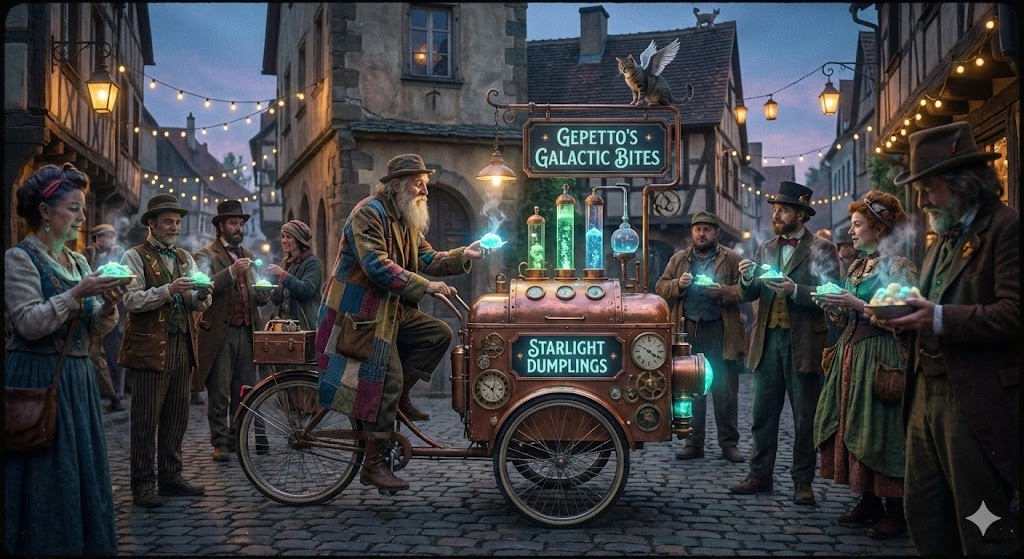
With the ability, if you upload an image of a crowded street market, the model shouldn't just say "a market." Based on a strong prompt, it should output a thorough description: "A man with a long white beard rides a bicycle with glowing green accents and a steampunk-style device mounted on the back. He extends a glowing orb toward a woman in a purple dress. Around them, people in period attire gather on a cobblestone street lined with timber-framed buildings. String lights illuminate the scene. A sign reads Genuine Gaseous Dine. A small dragon-like creature perches on a roof. The sky is dusky, suggesting evening. Colors include purples, browns, and greens."
SDK Tutorial
Step 1: Create an Ability
First, let’s define the ability. Get early access to Abilities here ›
ability_prototypes = [
   VlmAbilityCreate(
       name=f"{NAMESPACE_PREFIX}.image-describe.Describe-Img",
       description="Describe the given image",
       worker_release="qwen3-instruct",
       text_prompt=license_prompt,
       transform_into=TransformInto(),
       config=InferRuntimeConfig(
           max_new_tokens=150,
           image_size=512
       ),
       is_public=False
   )
]
The prompt we can use here is:
You are given a single image.

Your task is to produce a factual description of what is visually observable.

Write EXACTLY 100 words.

----------------------------------------
INSTRUCTIONS:

1. Describe only what is visible in the image.
2. Do NOT infer intent, emotions, identity, relationships, or backstory.
3. Do NOT speculate about events outside the frame.
4. Do NOT add context that is not visually present.
5. Do NOT mention camera quality, metadata, or assumptions.
6. Use clear, neutral, objective language.
7. Use present tense.
8. Avoid repetition.
9. No bullet points.
10. No introduction or conclusion.

----------------------------------------
CONTENT GUIDELINES:

Include when visible:
- People, animals, or objects
- Clothing and appearance (without guessing identity)
- Actions or poses
- Spatial layout and depth
- Environment or setting
- Lighting and shadows
- Colors and textures
- Visible text or numbers
- Weather or time-of-day indicators if visually clear

----------------------------------------
STRICT OUTPUT RULES:

- Output exactly 100 words.
- Do not include a word count.
- Do not include commentary.
- Do not use quotation marks unless text appears in the image.
- If the image is blank or unreadable, output: NO

----------------------------------------

Return only the 100-word description.
Next, we can actually create the ability with the following code:
with EyePopSdk.dataEndpoint(api_key=EYEPOP_API_KEY, account_id=EYEPOP_ACCOUNT_ID) as endpoint:
   for ability_prototype in ability_prototypes:
       ability_group = endpoint.create_vlm_ability_group(VlmAbilityGroupCreate(
           name=ability_prototype.name,
           description=ability_prototype.description,
           default_alias_name=ability_prototype.name,
       ))
       ability = endpoint.create_vlm_ability(
           create=ability_prototype,
           vlm_ability_group_uuid=ability_group.uuid,
       )
       ability = endpoint.publish_vlm_ability(
           vlm_ability_uuid=ability.uuid,
           alias_name=ability_prototype.name,
       )
       ability = endpoint.add_vlm_ability_alias(
           vlm_ability_uuid=ability.uuid,
           alias_name=ability_prototype.name,
           tag_name="latest"
       )
       print(f"created ability {ability.uuid} with alias entries {ability.alias_entries}")
That’s it! To run the prompt against an image here is some sample evaluation code:
from pathlib import Path


pop = Pop(components=[
   InferenceComponent(
  ability=f"{NAMESPACE_PREFIX}.image-describe.Describe-Img:latest"
   )
])


with EyePopSdk.workerEndpoint(api_key=EYEPOP_API_KEY) as endpoint:
   endpoint.set_pop(pop)
   sample_img_path = Path("/content/sample_img.jpg")
   job = endpoint.upload(sample_img_path)
   while result := job.predict():
     print(json.dumps(result, indent=2))

print("Done")
After running the evaluation you can see what the model described and compare it to your source of truth. With this, you can improve your prompts and thus improve your accuracy. Get early access to Abilities here ›
Get early access
Want to move faster with visual automation? Request early access to Abilities and get notified as new vision capabilities roll out.