
Detect Large Animal Threat
Determine if a video contains a dangerous or large animal and locate those occurrences throughout the timeline.

eyepop.find-events.detect-dangerous-animal:latest
Analyze the provided video or image footage to determine if it depicts a large, potentially dangerous wild animal within a residential environment.
Read the following definitions carefully before making your decision:
dangerous_animal: This label is STRICTLY reserved for scenes where a large, potentially dangerous wild animal is...
...Run the full prompt in your EyePop.ai dashboard
Input
Video
Output
dangerous_animal
Model type
EyePop.ai VLM

How It Works
Home security and doorbell cameras generate countless motion alerts every day with delivery drivers, neighborhood pets, and harmless animals all causing meaningless warnings. However, missing an alert when a genuinely dangerous wild animal (bears, mountain lions, and/or coyote) is actively roaming near the front door poses a serious safety risk. Being able to filter video feed as an automated security monitor to determine if a video clip contains a potentially dangerous animal in a residential setting is an incredibly important ability. The Find Events task on the Abilities tab can act as a safety tool to determine if a video contains a dangerous or large animal and locate those occurrences throughout the timeline.
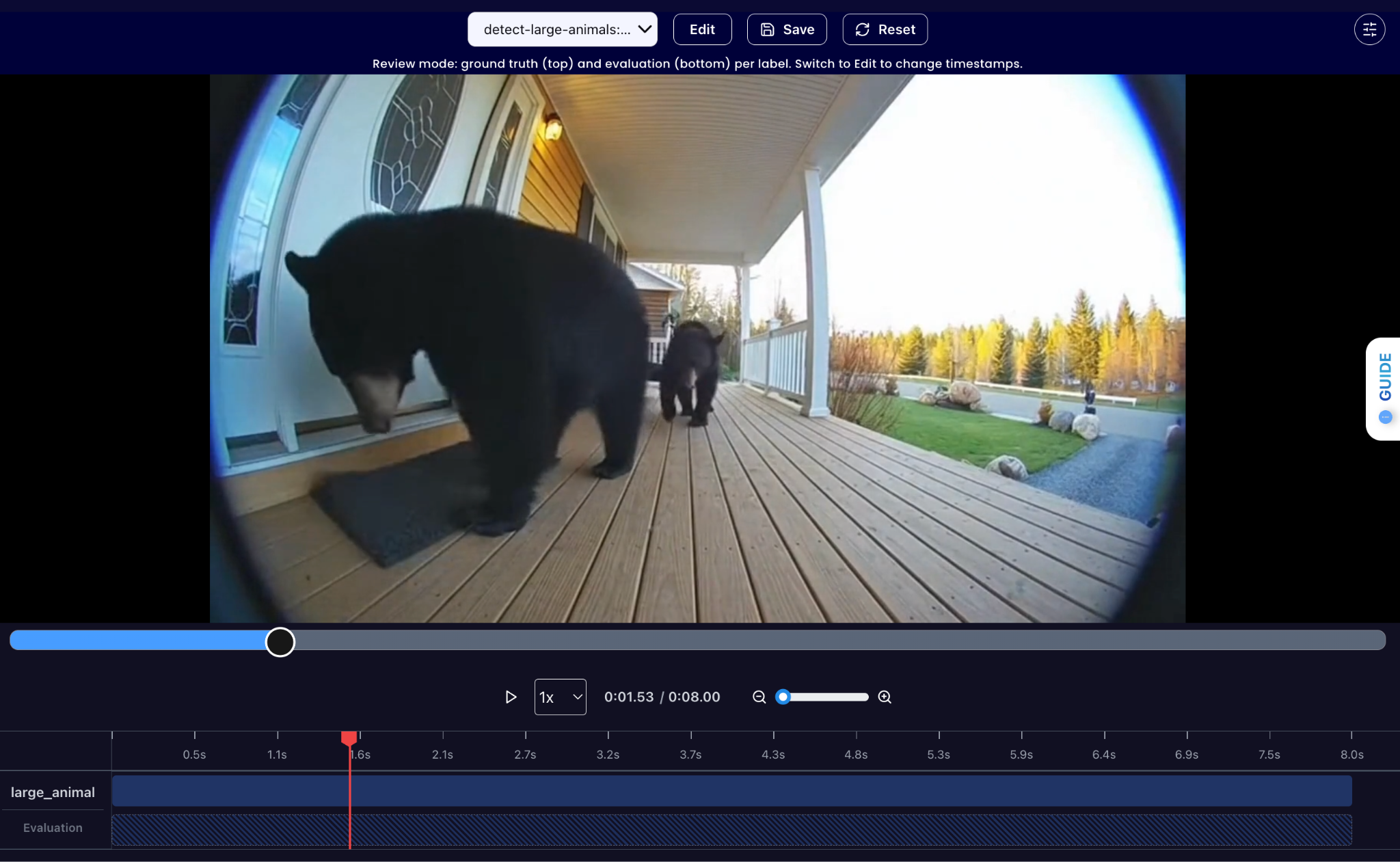
For example, if a porch camera captures a black bear sniffing around a front door or a driveway, this footage should be flagged with the large_animal.
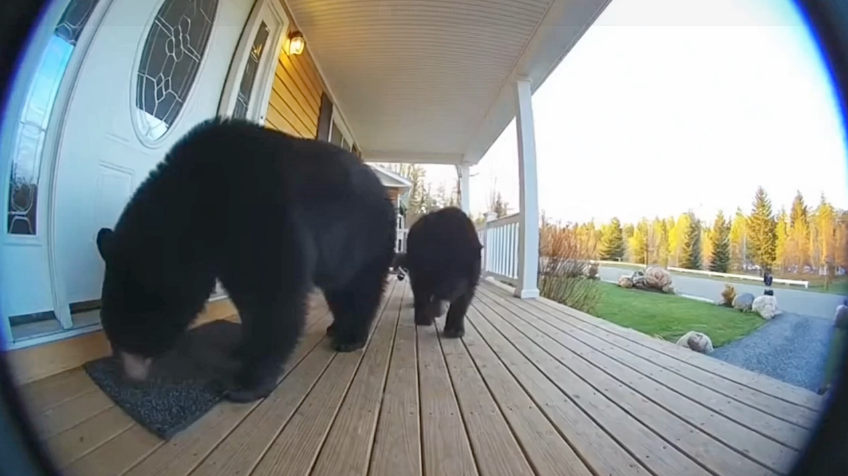
We will need to strictly separate these instances from normal activity. This means explicitly excluding human visitors, large domestic pets, and small nuisance wildlife like raccoons or birds, ensuring the system only triggers for genuine wildlife threats.
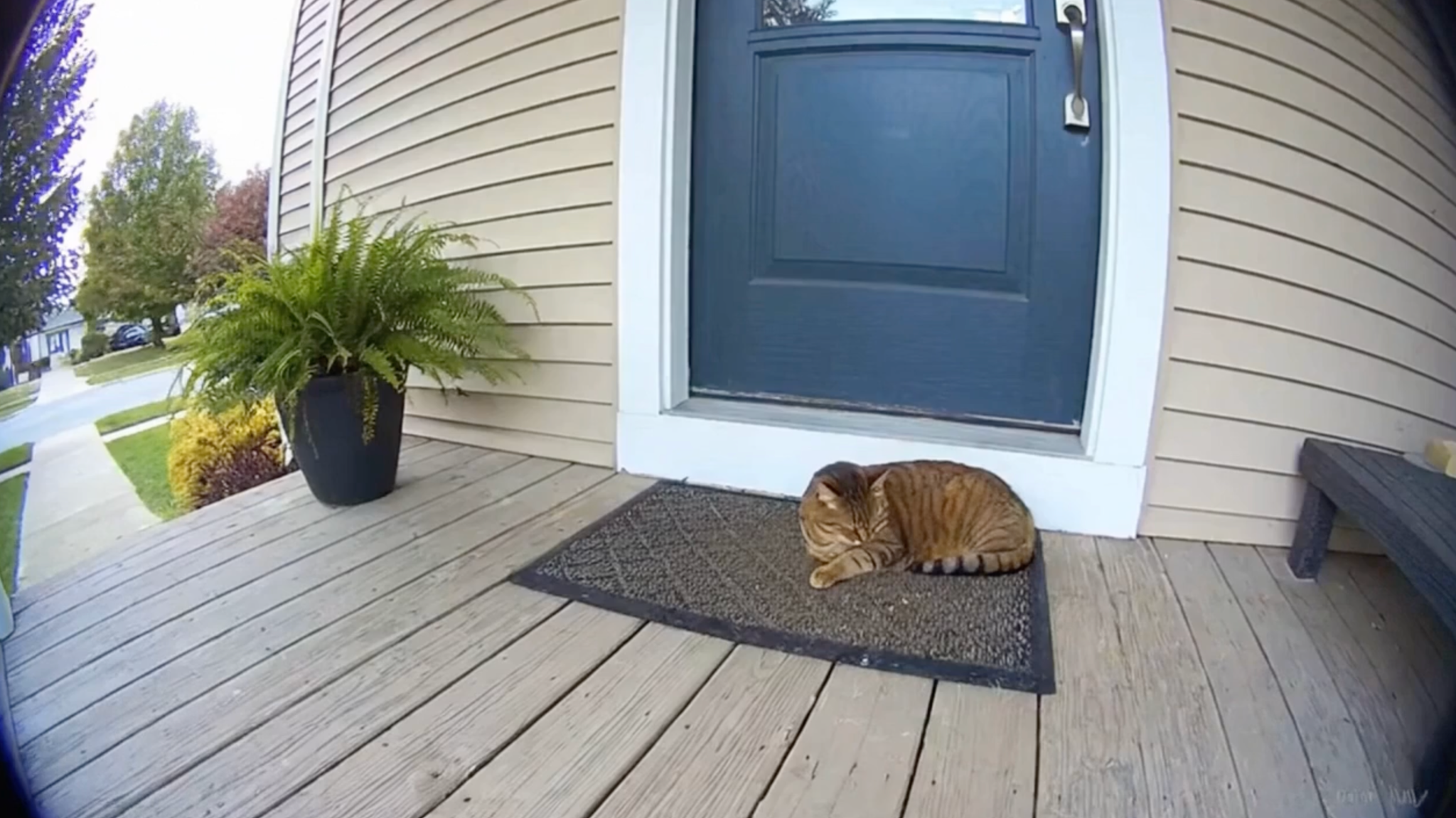
Our expected inputs are videos, and the expected output will be the timestamps identifying exactly when the dangerous_animal appears throughout the footage.
UI Tutorial
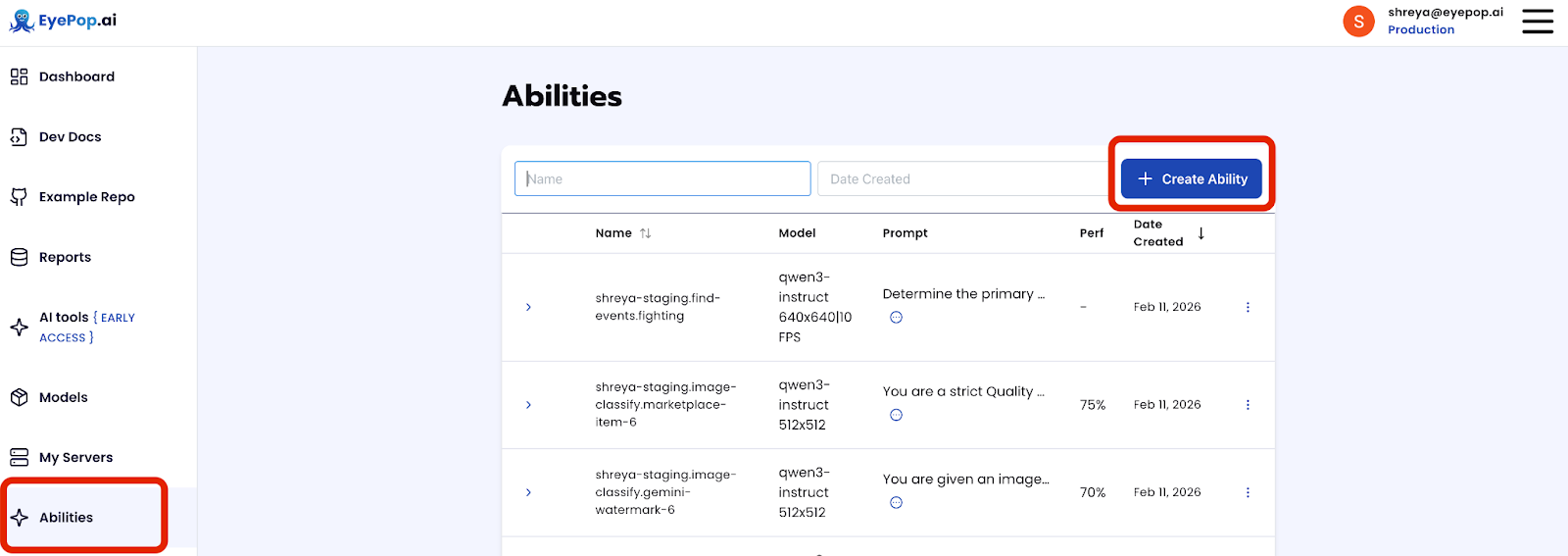
Step 1: Create an Find Event Ability
Go to the Abilities tab and select the button Create Ability. Get early access to Abilities here >
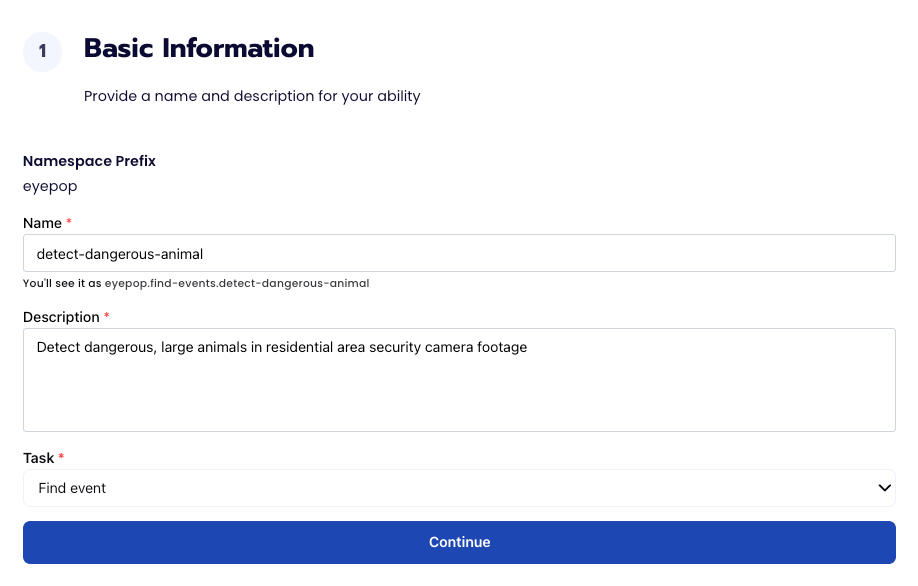
Fill out basic information about the ability such as its name and the description of the task itself. Since we are classifying events in a video, select the Task Type as Find Events.
Step 2: Task Configuration
To configure the task, we need to select a dataset for the specific task. If you have already uploaded your videos in a dataset simply select the name of your dataset. However, if you haven’t already done so then select <New Dataset> and upload your videos, label them by identifying when the large animal appears in the video footage, and create a label dangerous_animal in Event Names.

Step 3: Configuration
Our next step is to configure the prompt, select the model, and image size. For this use case, we recommend using the below prompt and settings for highest accuracy and best results.
Prompt:
Analyze the provided video or image footage to determine if it depicts a large, potentially dangerous wild animal within a residential environment.
Read the following definitions carefully before making your decision:
dangerous_animal: This label is STRICTLY reserved for scenes where a large, potentially dangerous wild animal is...

Step 4: Run Evaluation
To check how well the prompt does against the dataset, our next step is to run the evaluation. If needed, review the examples in your dataset to ensure all necessary images can be used in the evaluation.
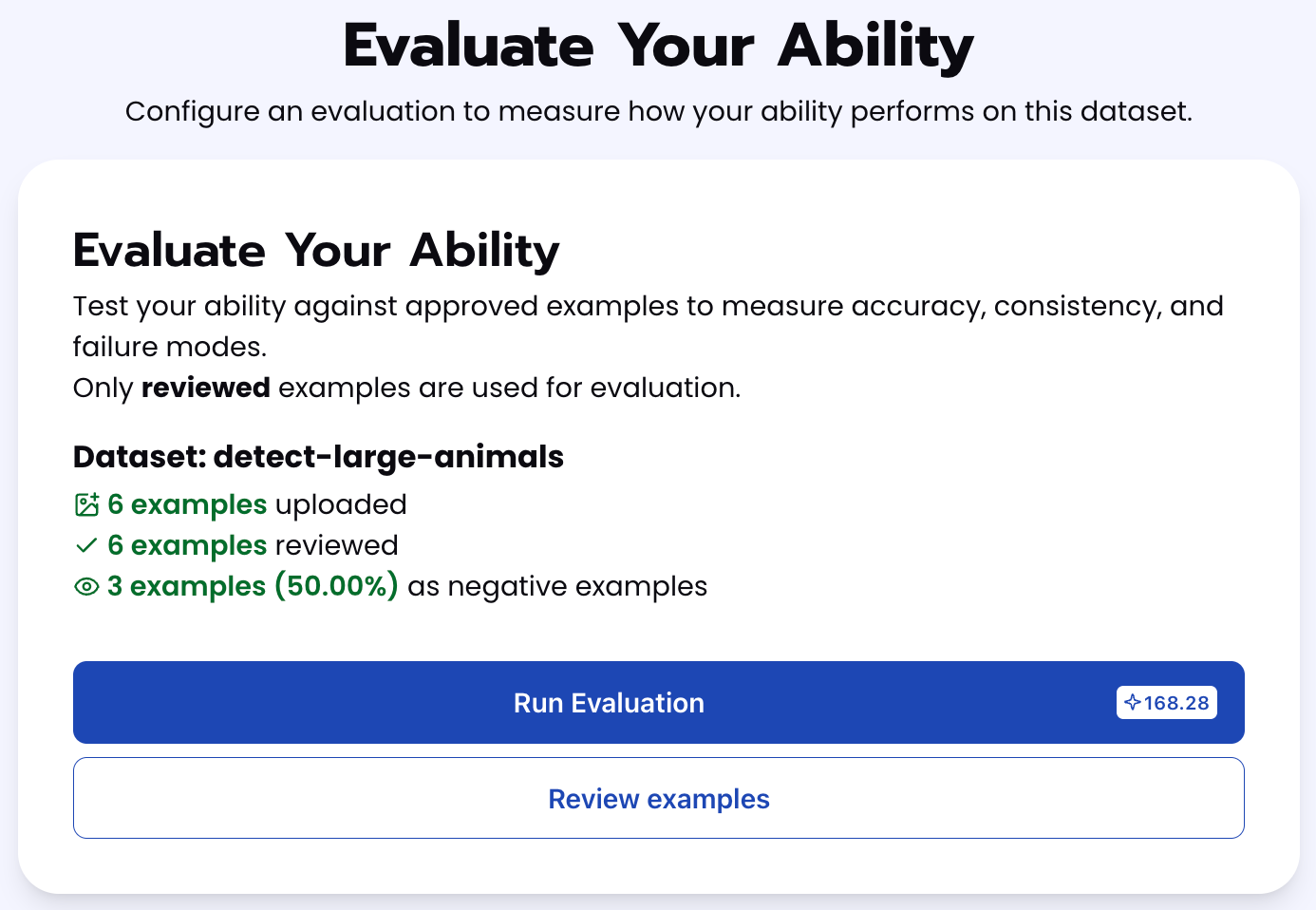
Step 5: Check Evaluation
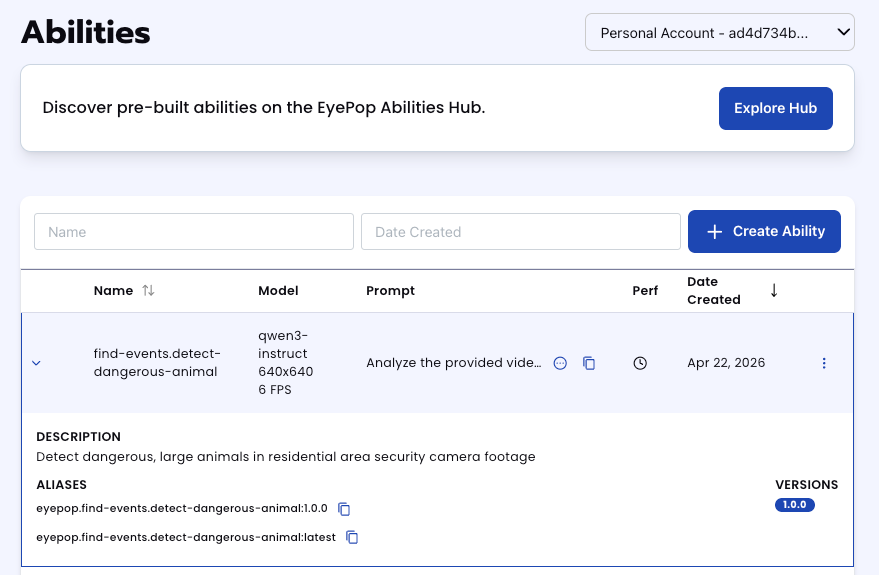
All evaluations can be reviewed in the Abilities tab by clicking the dropdown arrow next to the associated ability-alias. Evaluations can take around 15-20 minutes to complete based on the size of the dataset.
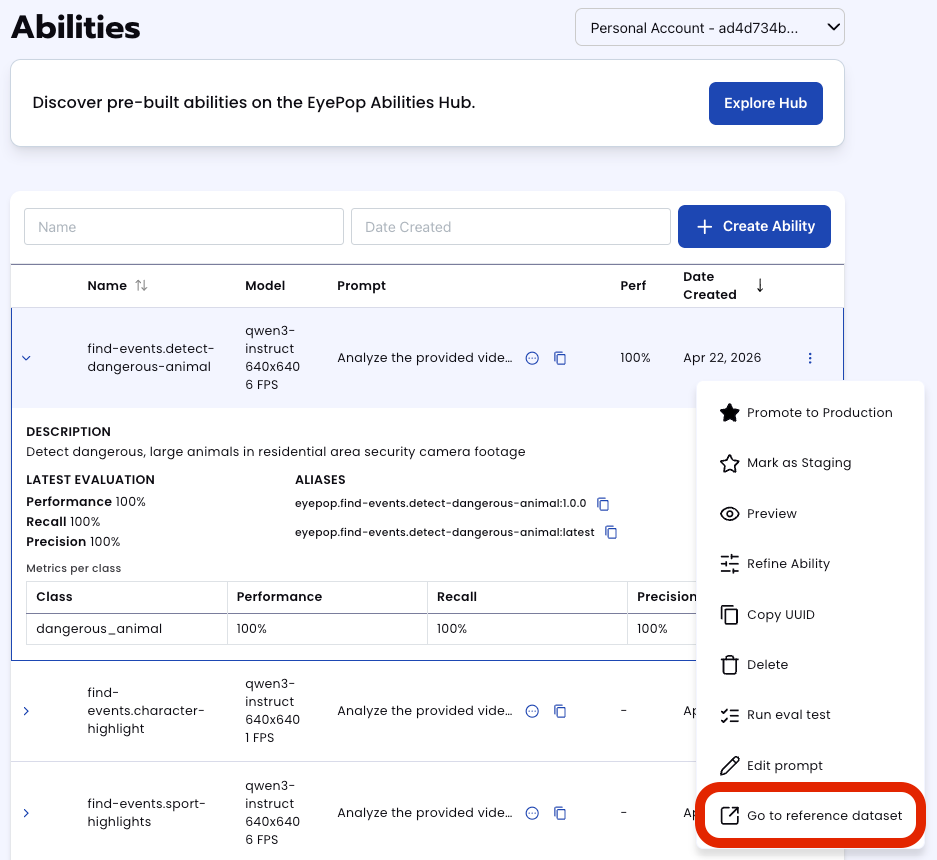
In addition to the performance, recall, and precision percentages on the abilities tab, you can see a visualization of what the model predicted by revisiting the dataset. Click on the three dots and select “Go to reference dataset”.
Select one of the videos in the dataset and click on the review button.
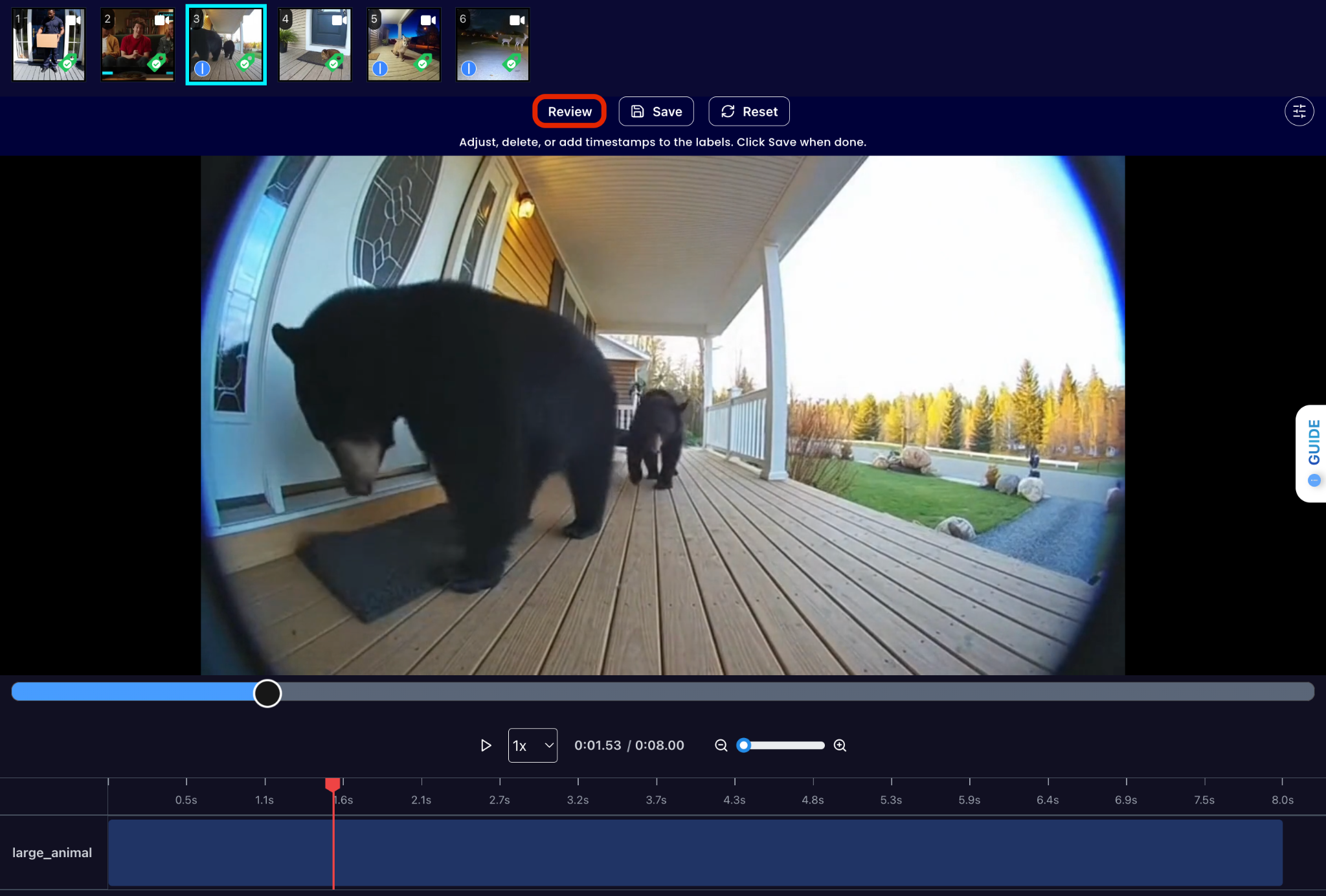
After running the evaluation you can see what the model labelled as dangerous_animal and compare it to what you labelled. With this, you can improve your prompts and thus improve your accuracy.
Get early access
Want to move faster with visual automation? Request early access to Abilities and get notified as new vision capabilities roll out.