
OCR with Historical Texts
Automatically extract text accurately from historical documents.
eyepop.structured-OCR.read-historical-doc:latest
Prompt
You are given an image of a historical document.
Your task is to extract structured data that is clearly visible in the image.
Return ONLY valid JSON.
Do not include explanation.
Do not include markdown.
Do not include commentary...
...Run the full prompt in your EyePop.ai dashboard
Input
Image
Output
JSON
Image size
512x512 - Small
Model type
EyePop.ai VLM

How It Works
Transcribing historical documents is an important ability for researchers and archivists; however, manually reviewing and decoding cursive and Old English text from fragile records is painstakingly slow. Thus, being able to accurately and automatically extract this information is vital for historical preservation and research efficiency. The Structured OCR task on the Abilities tab can act as a powerful Optical Character Recognition (OCR) tool, reading the old handwriting on a document and outputting it into clean, structured text.
For example, if a user uploads a photo of a scan/photo of an 18th century letter, the model should examine the image, decipher the writing, and output text. In contrast, if a user uploads an image that is severely blurred, cut off, or covered by a harsh glare, the model should ideally flag that the necessary text cannot be confidently extracted, prompting the user to retake the scan/photo.
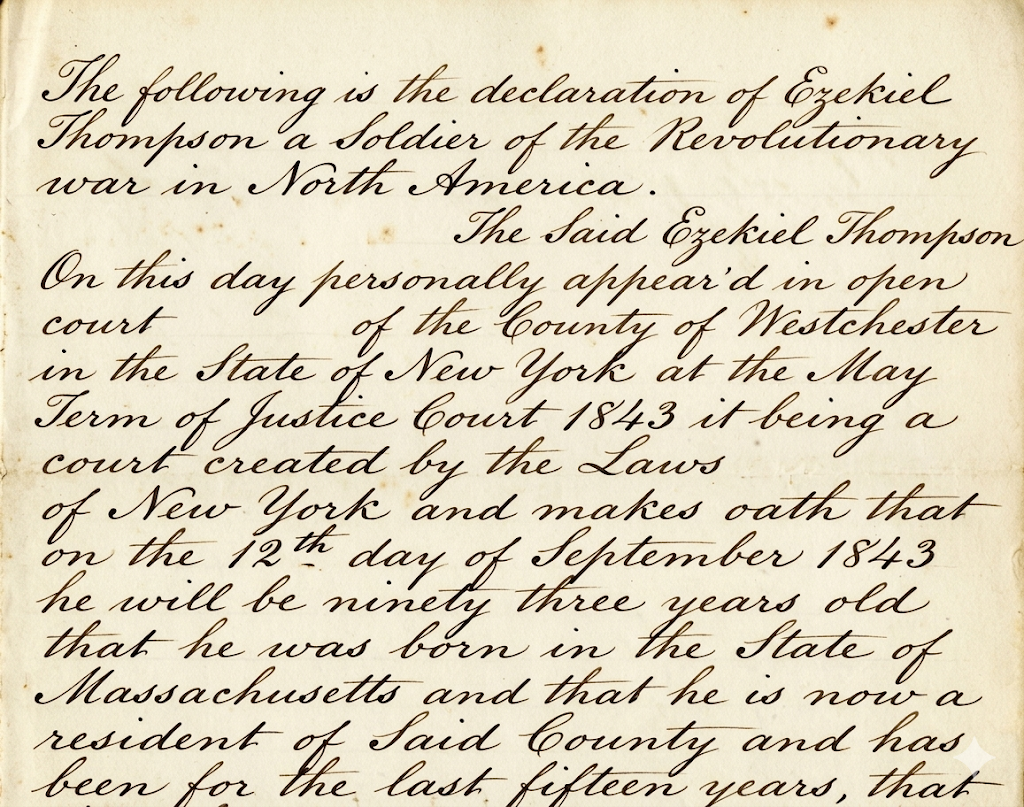
Our expected inputs are images of historical documents, and the expected output will be a text format, containing the extracted text from the target image.
SDK Tutorial
First, let’s define the ability. Get early access to Abilities here >
ability_prototypes = [
    VlmAbilityCreate(
        name=f"{NAMESPACE_PREFIX}.structured-OCR.read-historical-doc",
        description="Transcribe the historical document",
        worker_release="qwen3-instruct",
        text_prompt="""
        Transcribe this image
        """,
        transform_into=TransformInto(),
        config=InferRuntimeConfig(
            max_new_tokens=700,
            image_size=512
        ),
        is_public=False
    )
]
Next, we can actually create the ability with the following code:
with EyePopSdk.dataEndpoint(api_key=EYEPOP_API_KEY, account_id=EYEPOP_ACCOUNT_ID) as endpoint:
   for ability_prototype in ability_prototypes:
       ability_group = endpoint.create_vlm_ability_group(VlmAbilityGroupCreate(
           name=ability_prototype.name,
           description=ability_prototype.description,
           default_alias_name=ability_prototype.name,
       ))
       ability = endpoint.create_vlm_ability(
           create=ability_prototype,
           vlm_ability_group_uuid=ability_group.uuid,
       )
       ability = endpoint.publish_vlm_ability(
           vlm_ability_uuid=ability.uuid,
           alias_name=ability_prototype.name,
       )
       ability = endpoint.add_vlm_ability_alias(
           vlm_ability_uuid=ability.uuid,
           alias_name=ability_prototype.name,
           tag_name="latest"
       )
       print(f"created ability {ability.uuid} with alias entries {ability.alias_entries}")
Next, we can actually create the ability with the following code:
with EyePopSdk.dataEndpoint(api_key=EYEPOP_API_KEY, account_id=EYEPOP_ACCOUNT_ID) as endpoint:
   for ability_prototype in ability_prototypes:
       ability_group = endpoint.create_vlm_ability_group(VlmAbilityGroupCreate(
           name=ability_prototype.name,
           description=ability_prototype.description,
           default_alias_name=ability_prototype.name,
       ))
       ability = endpoint.create_vlm_ability(
           create=ability_prototype,
           vlm_ability_group_uuid=ability_group.uuid,
       )
       ability = endpoint.publish_vlm_ability(
           vlm_ability_uuid=ability.uuid,
           alias_name=ability_prototype.name,
       )
       ability = endpoint.add_vlm_ability_alias(
           vlm_ability_uuid=ability.uuid,
           alias_name=ability_prototype.name,
           tag_name="latest"
       )
       print(f"created ability {ability.uuid} with alias entries {ability.alias_entries}")
That’s it! To run the prompt against an image here is some sample evaluation code:
from pathlib import Path


pop = Pop(components=[
   InferenceComponent(
       ability=f"{NAMESPACE_PREFIX}.structured-OCR.read-historical-doc:latest"
   )
])


with EyePopSdk.workerEndpoint(api_key=EYEPOP_API_KEY) as endpoint:
   endpoint.set_pop(pop)
   sample_img_path = Path("/content/sample_img.png")
   job = endpoint.upload(sample_img_path)
   while result := job.predict():
      print(json.dumps(result, indent=2))


print("Done")
After running the evaluation you can see what the model labelled and compare it to your source of truth. With this, you can improve your prompts and thus improve your accuracy. Get early access to Abilities here >
Get early access
Want to move faster with visual automation? Request early access to Abilities and get notified as new vision capabilities roll out.