
Patient Intake Form Digitizer
Handwritten forms -> structured patient profiles.
datasciencealliance-org.structured-OCR.patient-intake:1.0.0
Prompt
Return ONLY valid JSON.
Do not include explanation.
Do not include markdown.
Do not include commentary.
---------------------------------------
INSTRUCTIONS:
1. Extract only text that is clearly readable.
2. Do NOT guess or infer missing values.
3. If a field is not visible or unreadable, return null.
...Run the full prompt in your EyePop.ai dashboard
Input
Image
Output
JSON
Image size
1000x1000
Model type
EyePop.ai VLM

How It Works
OCR with Patient Intake Form
Problem Description:
Transferring patient information from written forms to a digital file can be a useful tool for hospitals and other healthcare organizations. Transferring patient intakes form manually can be slow and lead to errors. Even small transcription mistakes can have serious downstream consequences for patient safety and billing accuracy. The Structured OCR task on the Abilities tab can act as a powerful Optical Character Recognition (OCR) tool, reading the text on a patient intake form and outputting it into a clean, structured format.
For example, if a patient form is uploaded, the model should be able to extract and categorize the text on the image into different fields. For example, the model will pull "Maria" for First Name, "Lopez" for Last Name, "07/12/1984" for Date of Birth, "619-555-0184" for Phone Number, and isolate fields such as Email, Address, and Member ID.

UI Tutorial
Step 1: Create an Ability
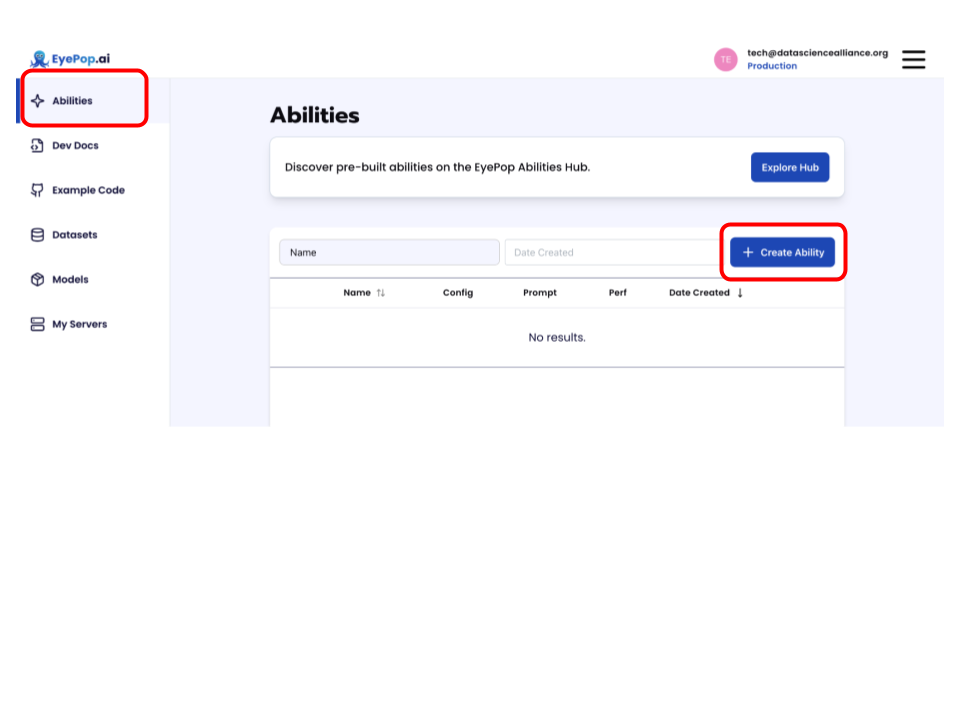
Go to the Abilities tab and select the button Create Ability.
Fill out basic information about the ability such as its name and the description of the task itself. Since we are working with an OCR task, select the Task Type as Structured OCR.
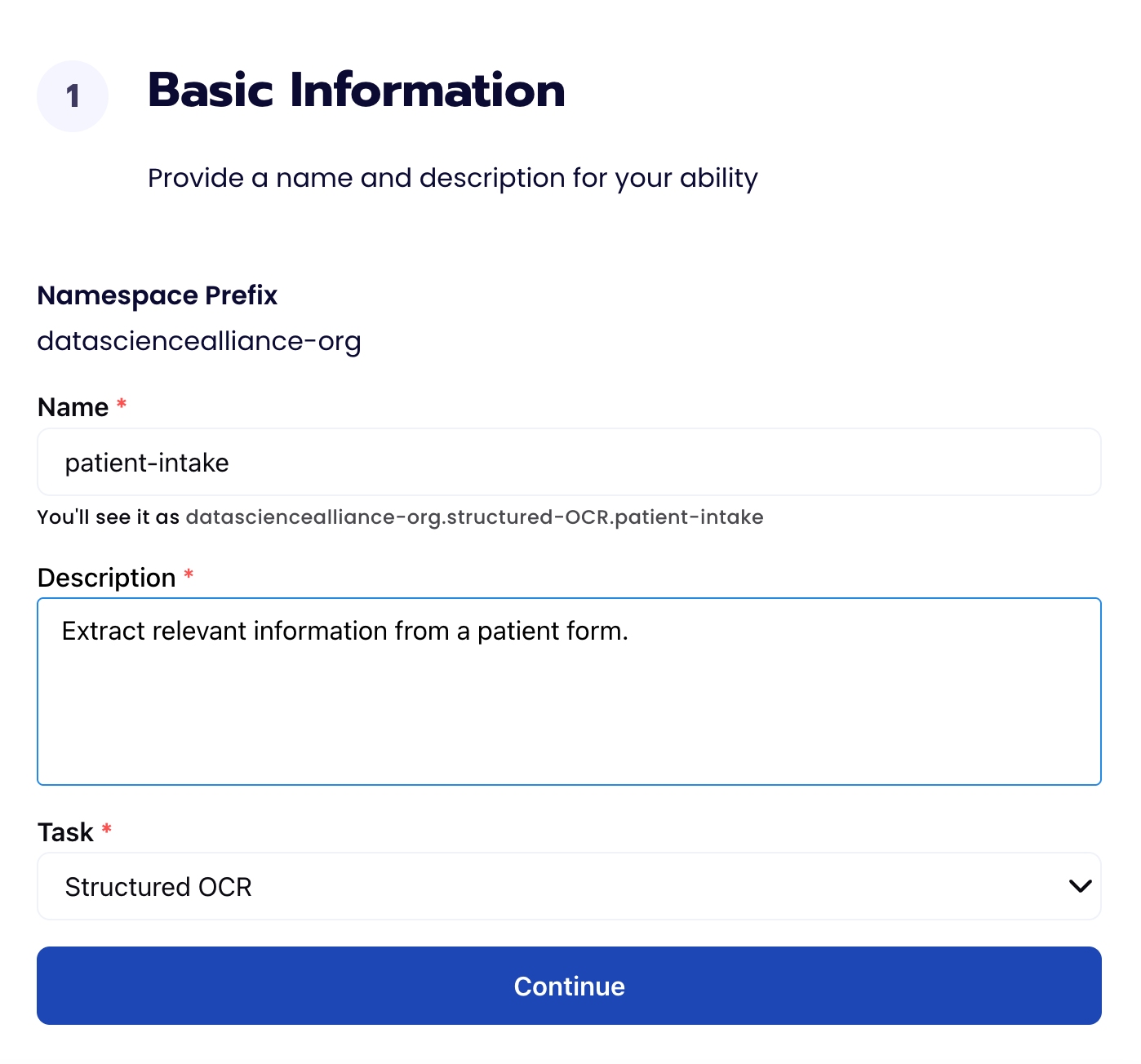
Step 2: Configuration
Our next step is to configure the prompt, select the model, and image size. For this use case, we recommend using the below prompt and settings for highest accuracy and best results.
The prompt we can use here is:
You are given an image of a patient form. Your task is to extract structured data that is clearly visible in the image. Return ONLY valid JSON. Do not include explanation. Do not include markdown. Do not include commentary.
INSTRUCTIONS: 1. Extract only text that is clearly readable. 2. Do NOT guess or infer missing values. 3. If a field is not visible or unreadable, return null. 4. Preserve capitalization exactly as shown. 5. Preserve spacing inside fields where applicable. 6. Do NOT reformat dates unless the format is explicitly clear. 7. Do NOT fabricate data. 8. If the image is not a patient form, return: {"document_type": "unknown"}

Step 3: Test an image through Preview.
Click the three vertical dots next to your ability and then click Preview.
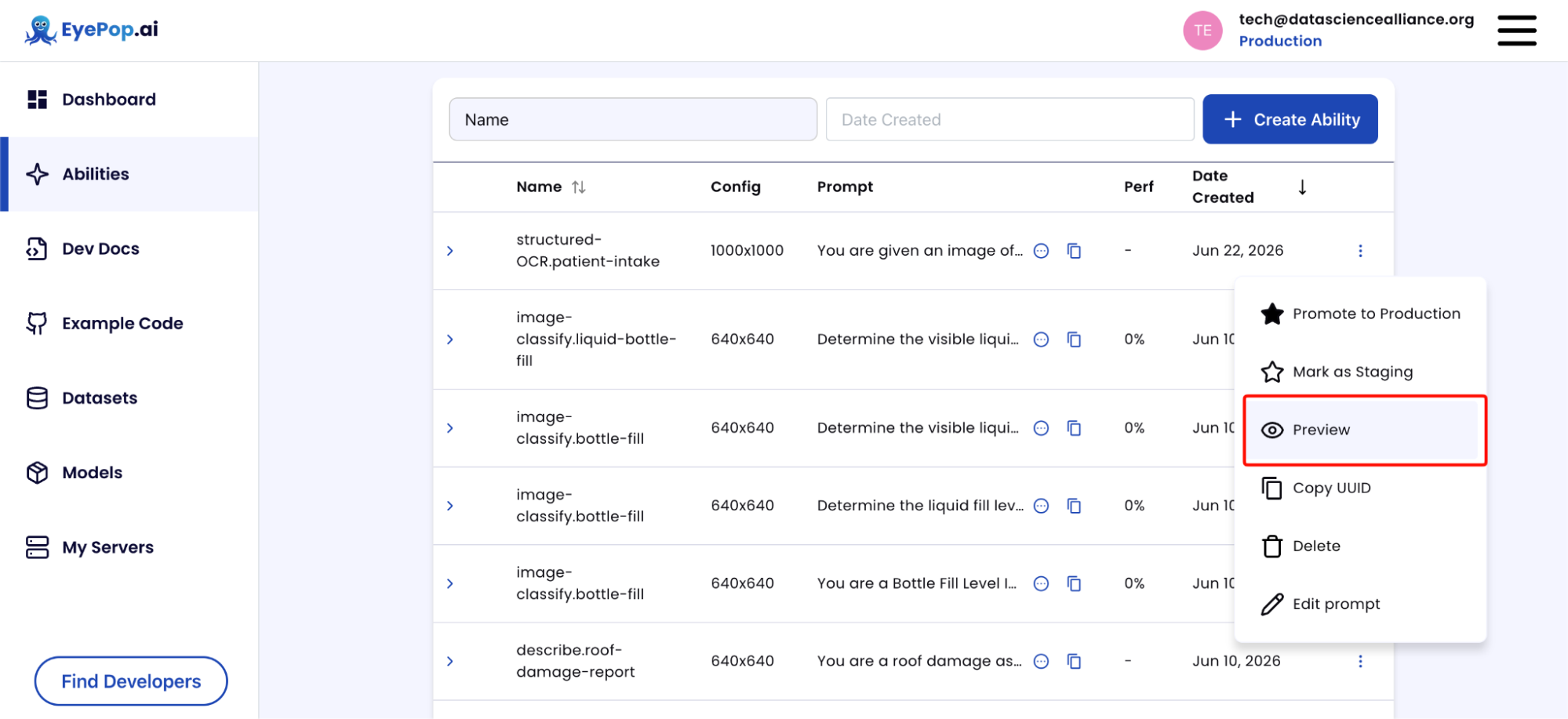
After uploading your file, you should get an output that looks like this:

That's it! Clicking on the text will give you the outputted JSON object of the patient form. After running the evaluation you can see what the model described and compare it to your source of truth. With this, you can improve your prompts and thus improve your accuracy.
Get early access
Want to move faster with visual automation? Request early access to Abilities and get notified as new vision capabilities roll out.