
Pedestrian Safety Violations
Detects when a pedestrian enters, occupies, touches, or moves alongside a marked forklift or vehicle safety zone.

datasciencealliance-org.find-events.pedestrian-safety-violations:latest
Prompt
Look at all people visible in the image and the yellow boundary lines on the floor.Determine whether the feet of ANY person are inside the area enclosed by the yellow lines.
...Run the full prompt in your EyePop.ai dashboard
Input
Video
Output
Inside_Safety_Zone, Outside_Safety_Zone
Image size
640x640
Model type
QWEN3 - Better Accuracy
FPS
1

How It Works
As its name implies, the Find Event task on the Abilities tab analyzes video footage to identify events or conditions of interest. We can use this to determine whether pedestrians are occupying a marked forklift or vehicle safety zone in warehouse and industrial environments. Detecting pedestrian safety-zone occupancy can be useful for warehouses, distribution centers, manufacturing facilities, and other environments where pedestrians and industrial vehicles may operate in close proximity.
For example, when all visible pedestrians have their feet outside the area enclosed by the marked safety-zone boundaries, the footage should be classified as Outside_Safety_Zone.
In contrast, when the feet of at least one visible pedestrian are inside the area enclosed by the marked safety-zone boundaries, the footage should be classified as Inside_Safety_Zone. When multiple people are visible, the presence of at least one person inside the marked safety zone is sufficient for the Inside_Safety_Zone classification, even if other people remain outside the zone.
The classification is based primarily on the position of pedestrians’ feet relative to the visible safety-zone boundaries. This provides a direct visual indication of whether a pedestrian is occupying the marked area rather than relying on the position of the pedestrian’s upper body.
A forklift or vehicle does not need to be visible for the safety-zone condition to be detected. The video will be classified into one of two class labels: Inside_Safety_Zone and Outside_Safety_Zone.
Step 1: Create an Ability
Go to the Abilities tab and select the button Create Ability.
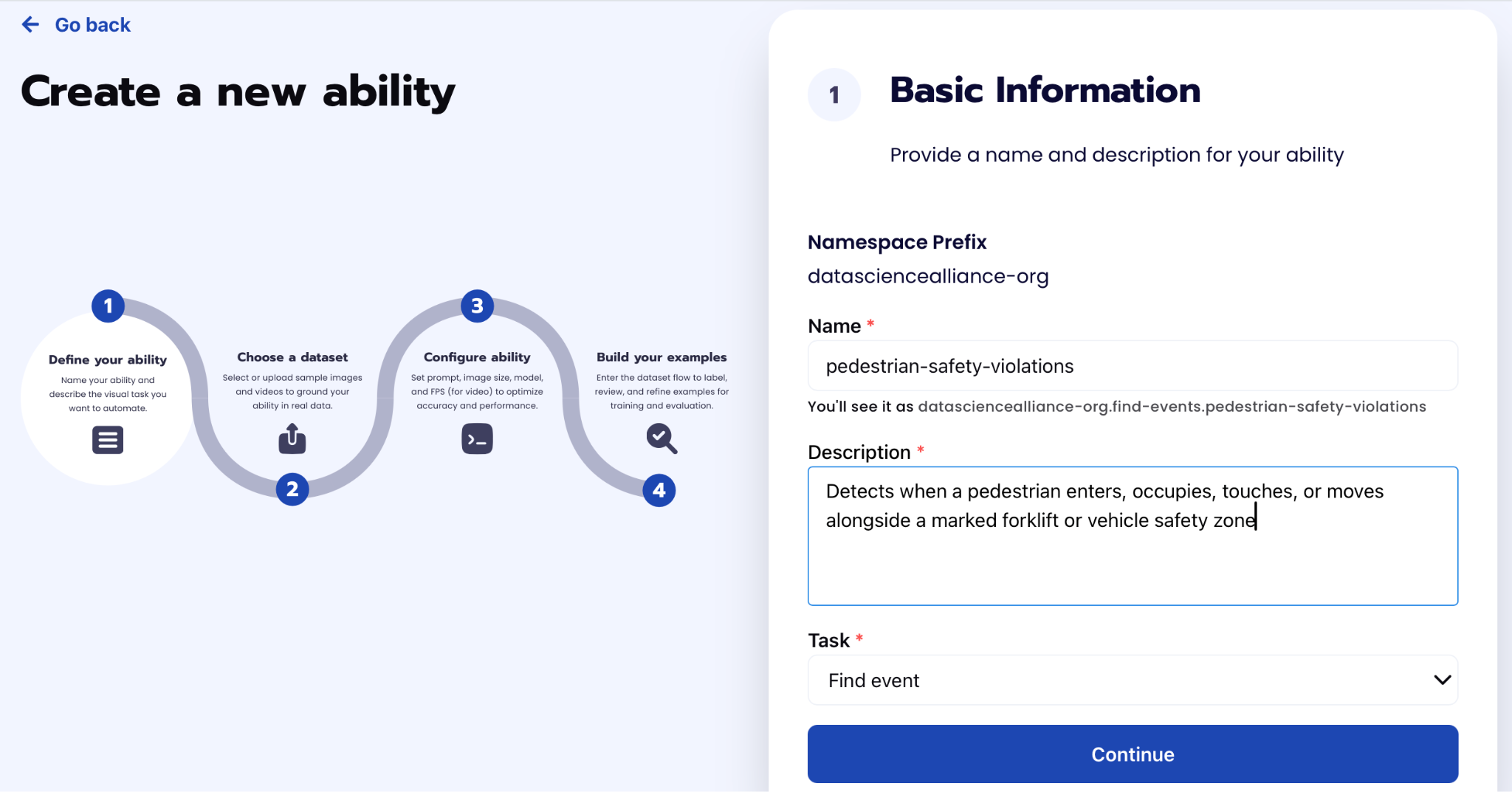
Fill out basic information about the ability such as its name and the description of the task itself. Since we are classifying an image, select the Task Type as Find event.
Step 2: Task Configuration
To configure the task, we need to select a dataset for the specific task. If you have already uploaded your videos in a dataset simply select the name of your dataset. However, if you haven’t already done so then select <New Dataset> and upload your videos and create the labels : Inside_Safety_Zone, Outside_Safety_Zone.
You need to label the samples in the dataset to be able to evaluate the ability later.
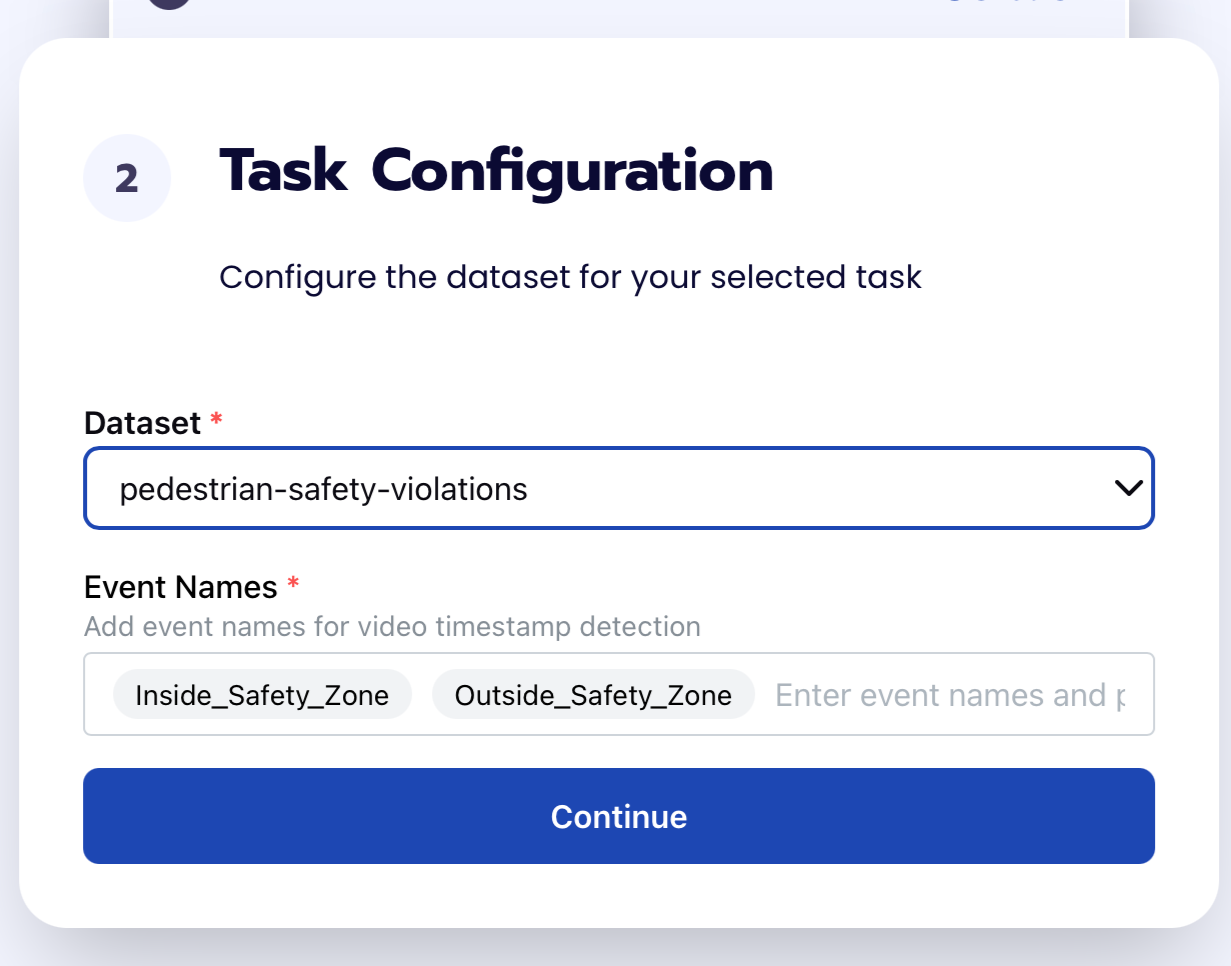
Step 3: Configuration
Our next step is to configure the prompt, select the model, and image size. For this use case, we recommend using the below prompt and settings for highest accuracy and best results.
We used FPS = 1 because it was efficient and Max New Tokens = 5, because the output is one label.
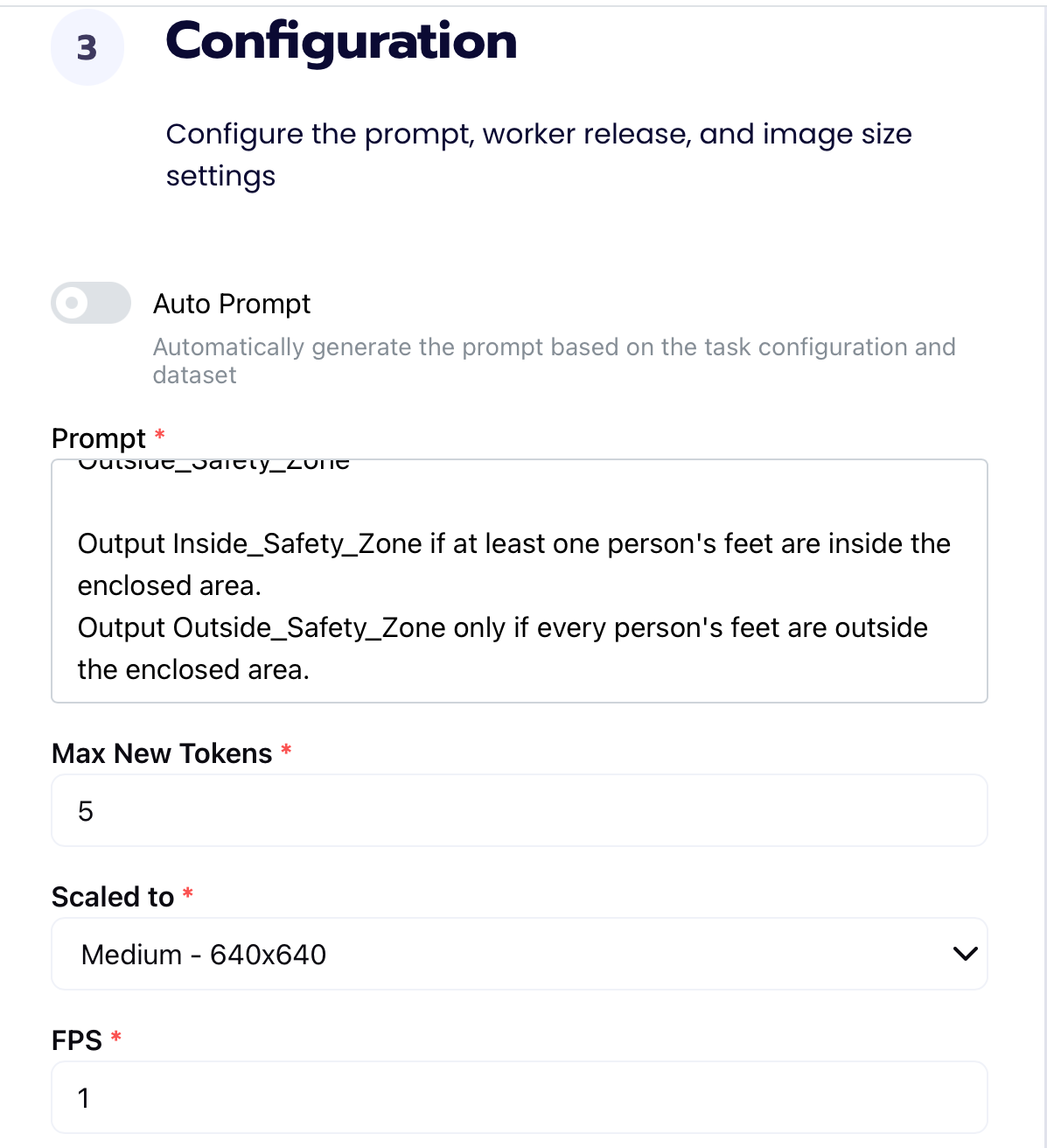
Prompt:
Look at all people visible in the image and the yellow boundary lines on the floor.
Determine whether the feet of ANY person are inside the area enclosed by the yellow lines.
Output only one label:
Inside_Safety_Zone
Outside_Safety_Zone
Output Inside_Safety_Zone if at least one person's feet are inside the enclosed area.
Output Outside_Safety_Zone only if every person's feet are outside the enclosed area.
Step 4: Run Evaluation
To check how well the prompt does against the dataset, our next step is to run the evaluation. If needed, review the examples in your dataset to ensure all necessary videos can be used in the evaluation.
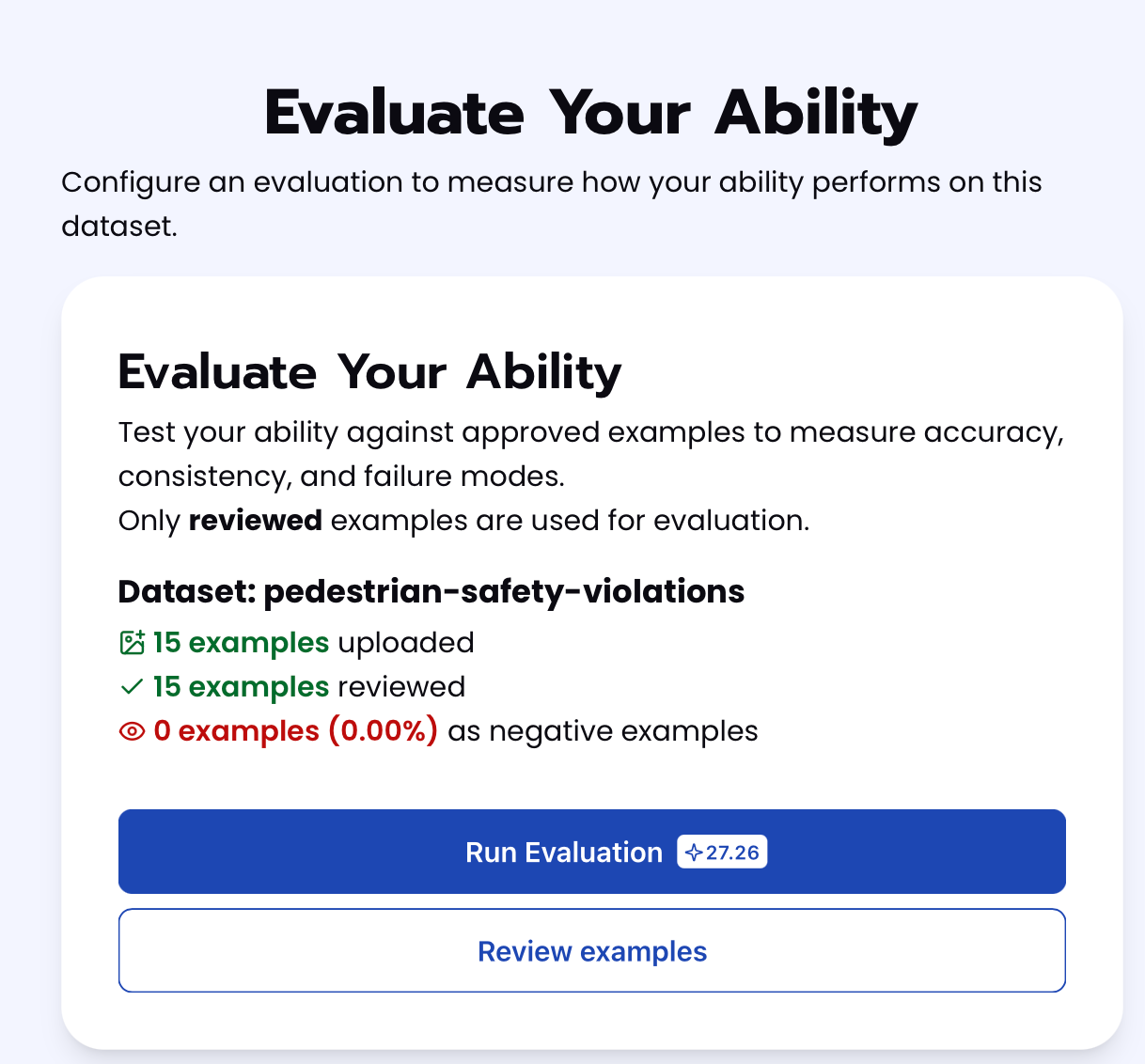
Step 5: Check Evaluation
All evaluations can be reviewed in the Abilities tab by clicking the dropdown arrow next to the associated ability-alias. Evaluations can take around 15-20 minutes to complete based on the size of the dataset.
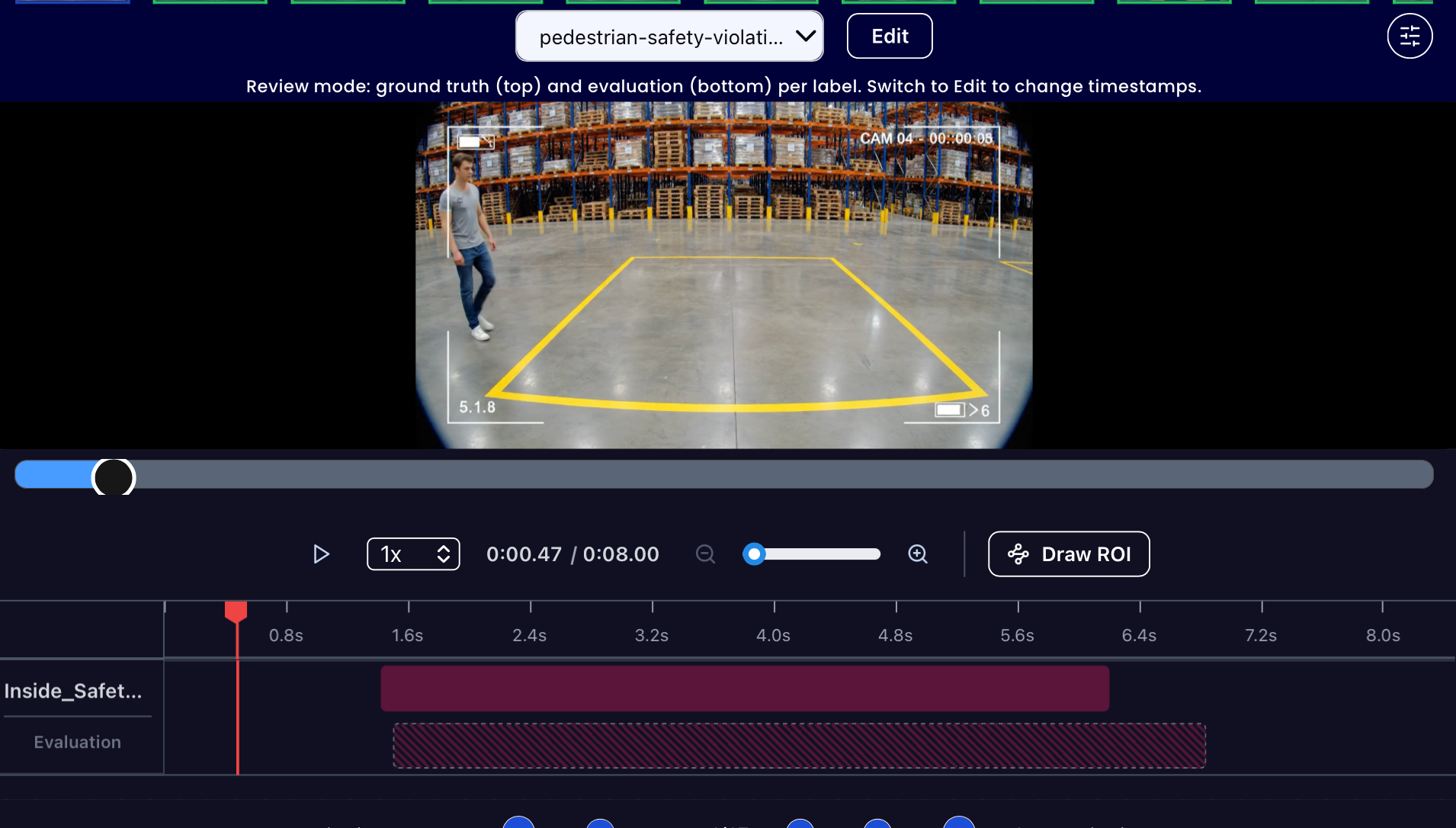
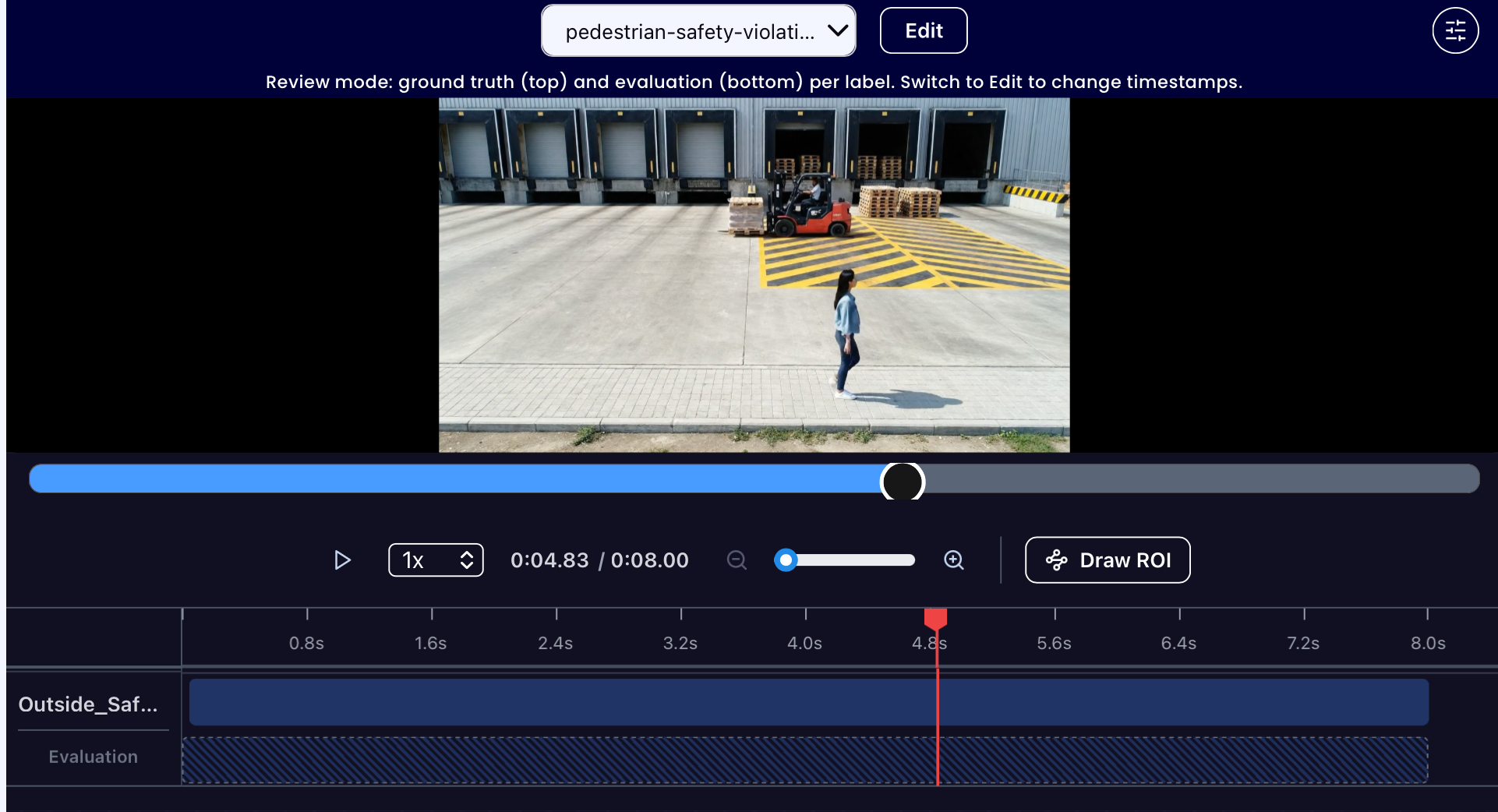
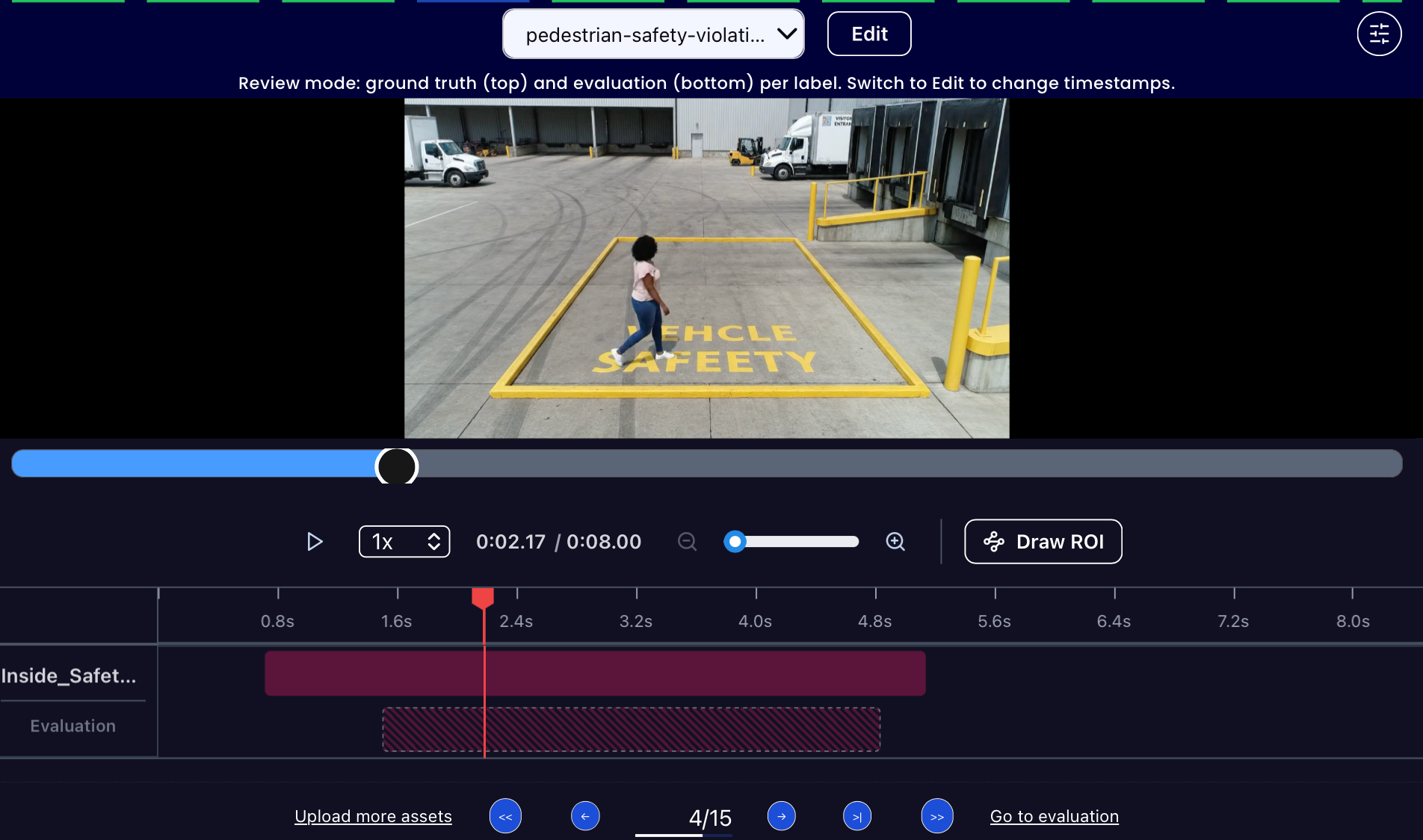
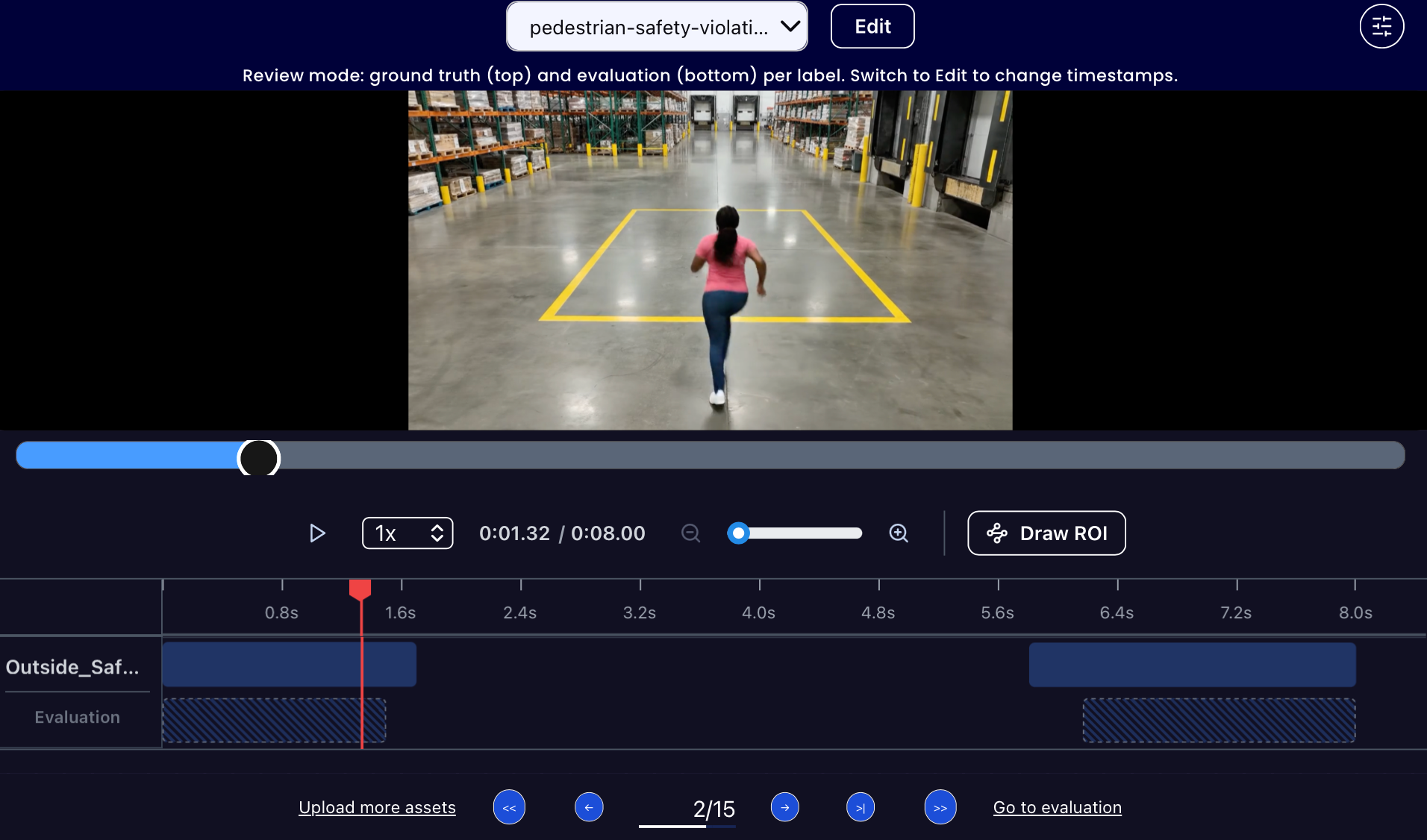
In addition to the performance, recall, and precision percentages on the Abilities tab, you can see a visualization of what the model predicted by revisiting the dataset. Click on the three dots and select "Go to reference dataset". Select one of the images in the dataset and click on the review button. After running the evaluation, you can see what the model prediction results for each video and compare it to the annotation. For Find events, the predictions result in time ranges for each of the classes and you can compare them to the ground truth time ranges provided when labeling the dataset. With this, you can improve your prompts and thus improve your accuracy.
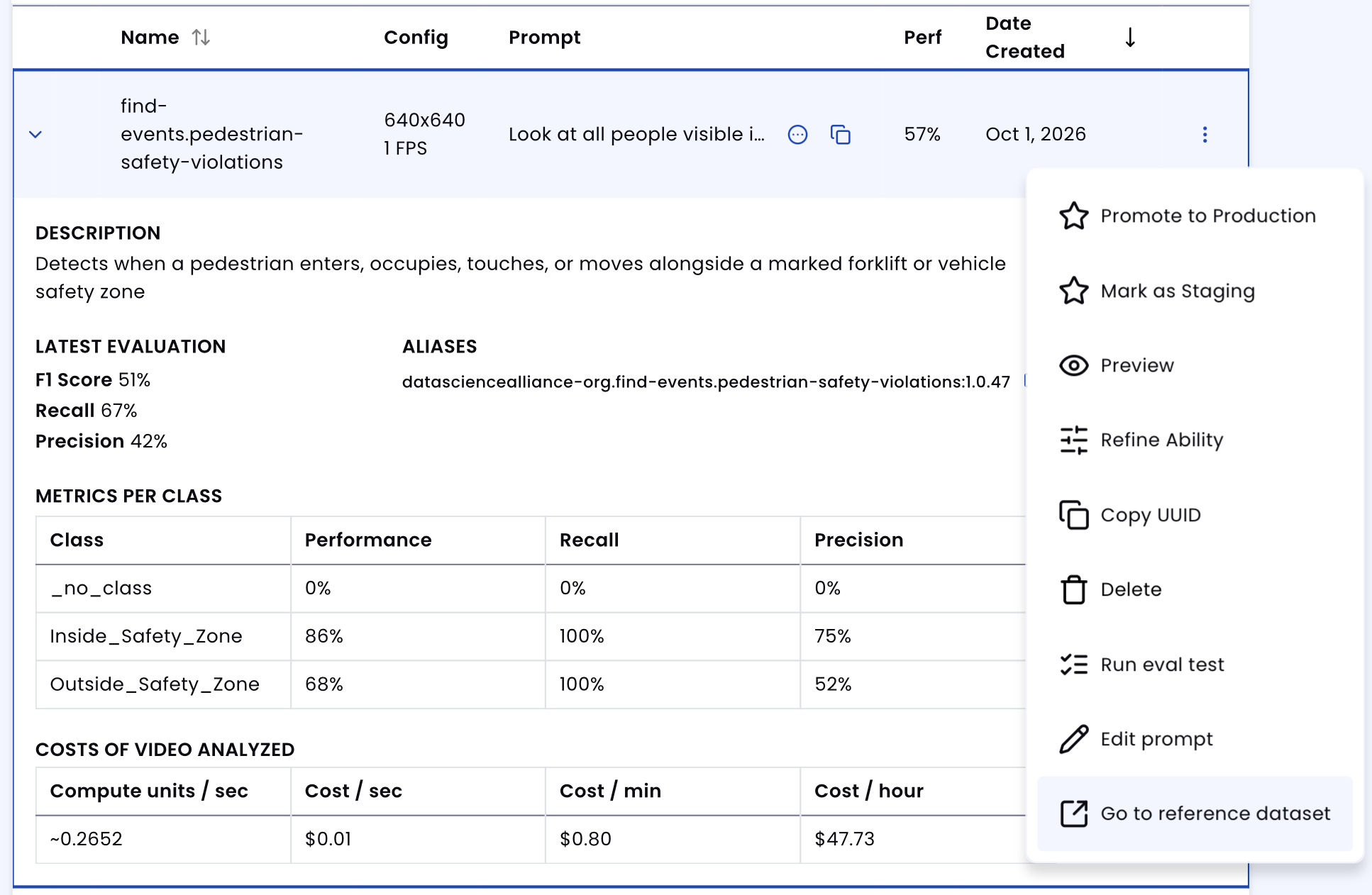
The ability achieved an EyePop-reported F1 score of 51%, with 67% recall and 42% precision. This overall score includes the automatically generated _no_class category, which received 0% across all metrics and is not one of the intended output classes.
For the two target classes, Inside_Safety_Zone achieved approximately 85.7% F1, while Outside_Safety_Zone achieved approximately 68.4% F1. Excluding _no_class, the macro-average F1 across the intended classes is approximately 77.1%, providing a more representative measure of the ability’s performance on the target task.
Tips for Accuracy
1. Use Concrete Spatial Labels
The model performed more consistently when the task was expressed as a direct spatial relationship rather than an abstract safety judgment. Labels such as Inside_Safety_Zone and Outside_Safety_Zone worked better than Violationand Not_Violation because they directly correspond to what the model needs to determine visually.
The prompt should focus on the pedestrian’s position relative to the marked area rather than asking the model to decide whether the scene represents a safety violation.
2. Focus on the Pedestrian’s Feet
Upper-body position can be misleading because perspective may cause a pedestrian’s head or torso to visually overlap the safety zone while their actual ground position remains outside it. The pedestrian’s feet and their position on the floor provide a more reliable reference.
For this ability:
- If at least one pedestrian’s feet are inside the area enclosed by the safety-zone markings, classify the scene as Inside_Safety_Zone.
- If every pedestrian’s feet are outside the enclosed area, classify it as Outside_Safety_Zone.
- When multiple pedestrians are present, evaluate all visible people, rather than allowing the model to select one person arbitrarily.
3. Keep the Classification Rule Simple
Adding too many safety concepts or edge-case rules can reduce consistency. During development, prompts involving terms such as violation, vehicle area, restricted area, and several boundary conditions performed worse than a simple inside/outside spatial question.
Define the visual condition first and allow the class label to represent its safety meaning. Avoid requiring the model to perform several reasoning steps before choosing a class.
4. Use Clear and Varied Examples
Examples should contain clearly visible safety-zone boundaries and unambiguous pedestrian positions. Include different warehouse layouts, camera angles, lighting conditions, zone shapes, and numbers of pedestrians.
Synthetic examples should also vary where pedestrians appear relative to the zone. Include obvious Inside_Safety_Zoneand Outside_Safety_Zone cases before introducing difficult boundary cases. This helps evaluate whether errors come from the model’s spatial reasoning rather than ambiguous markings or scene composition.
Example Results:
Get early access
Want to move faster with visual automation? Request early access to Abilities and get notified as new vision capabilities roll out.