
QSR Customer Experience Monitor
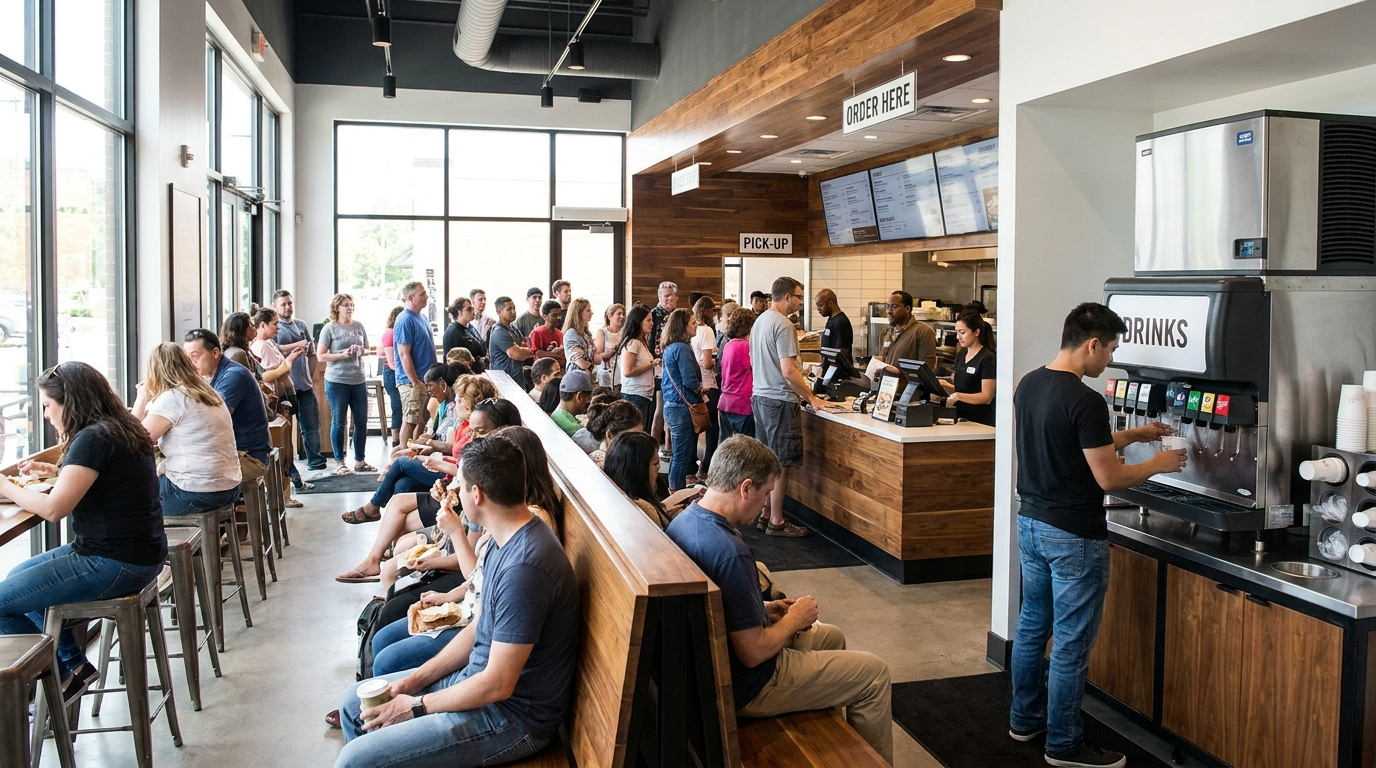
Classify quick service restaurant lobby images based on visible customer experience issues such as long lines, seating problems, dirty tables, crowding, or beverage station congestion.
datasciencealliance-org.image-classify.qsr-customer-experience-monitor:latest
Prompt
...Run the full prompt in your EyePop.ai dashboard
Input
Image
Output
Single classification label: Long_Line, Guests_Unable_To_Find_Seating, Dirty_Tables_Affecting_Seating_Availability, Lobby_Crowded, or Beverage_Station_Congestion
Image size
640x640
Model type
EyePop.ai VLM
FPS
1

How It Works
Classify with QSR Customer Experience Monitor
Problem: Quick service restaurants need to monitor lobby conditions in real time to understand customer experience issues such as long ordering lines, guests unable to find seating, dirty tables, crowded lobbies, and beverage station congestion. These issues can reduce customer satisfaction, slow service, block movement through the restaurant, and make it harder for guests to order, sit, or access self-service areas.
Manually reviewing restaurant lobby images is difficult to scale across locations and time periods. A visual AI ability can help classify the main operational issue shown in a restaurant image so teams can respond faster and understand recurring customer experience bottlenecks.
The Classify task on the Abilities tab can analyze a quick service restaurant image and assign one of several customer experience issue labels based on the dominant visible condition.
For example, an image with a long structured queue at the ordering counter should be classified as Long_Line. An image where guests are holding trays and searching for a place to sit should be classified as Guests_Unable_To_Find_Seating. An image with empty but messy tables should be classified as Dirty_Tables_Affecting_Seating_Availability. An image where guests are spread throughout the lobby and blocking walkways should be classified as Lobby_Crowded. An image where the crowd is concentrated around the soda fountain or drink station should be classified as Beverage_Station_Congestion.
We will need to separate visually similar issues carefully. A long line is different from a crowded lobby because a long line requires a clear queue of guests waiting for service. Guests unable to find seating is different from lobby crowding because it requires guests with food or trays looking for seats. Dirty tables affecting seating availability is different from general seating shortage because open tables are visible but unusable due to mess. Beverage station congestion is different from lobby crowding because the bottleneck is localized around the drink station.
Our expected inputs are images from quick service restaurant lobby or dining room cameras, and the expected output will be a single classification label identifying the primary customer experience issue.
Step 1: Create an Image Classification Ability
Go to the Abilities tab and select the button Create Ability.
Fill out the basic information about the ability.
Name: qsr-customer-experience-monitor
Description: Classify quick service restaurant lobby images based on visible customer experience issues such as long lines, seating problems, dirty tables, crowding, or beverage station congestion.
Since we are classifying a single image, select the task type as Classify Image.
Then click Continue.
Step 2: Task Configuration
To configure the task, select a dataset for the QSR customer experience monitor ability. If you have already uploaded your quick service restaurant images in a dataset, select the name of that dataset.
If you have not created a dataset yet, select New Dataset, upload your restaurant lobby images, and create these labels:
Long_Line
Guests_Unable_To_Find_Seating
Dirty_Tables_Affecting_Seating_Availability
Lobby_Crowded
Beverage_Station_Congestion
When labeling the dataset, choose the single most dominant issue shown in each image.
Use Long_Line when the image clearly shows a queue of guests waiting at the counter, cashier, kiosk, pickup counter, or service area.
Use Guests_Unable_To_Find_Seating when guests are holding food, trays, bags, or drinks and appear to be looking for a place to sit because most tables or seats are occupied.
Use Dirty_Tables_Affecting_Seating_Availability when tables are empty but unusable because they have leftover trays, wrappers, cups, crumbs, spills, or trash.
Use Lobby_Crowded when guests are generally spread across the lobby, entrance, waiting area, pickup area, or walkways and blocking movement.
Use Beverage_Station_Congestion when the crowd is concentrated around the self-serve drink station, soda fountain, ice machine, lids, straws, napkins, or condiment area.
Step 3: Configuration
Our next step is to configure the prompt, select the model, and set the image size. For this use case, we recommend using the below prompt and settings for highest accuracy and best results.
Prompt:
Determine the primary customer experience issue shown in the quick service restaurant image and assign exactly one label from this list:
['Long_Line', 'Guests_Unable_To_Find_Seating', 'Dirty_Tables_Affecting_Seating_Availability', 'Lobby_Crowded', 'Beverage_Station_Congestion']
Classify based on the single most dominant visible customer experience issue.
Choose 'Long_Line' only when the main issue is a clear queue of guests waiting at the ordering counter, cashier, kiosk, pickup counter, or service area. The people should form a visible line. Do not choose this label just because many people are standing around.
Choose 'Guests_Unable_To_Find_Seating' when the main issue is guests holding food, trays, or drinks while looking for a place to sit because most tables or seats are occupied. This label should be chosen when guests are standing near the dining area with food and appear unable to find open seating. If several guests are holding trays or food and looking around the dining area, choose this label even if the restaurant also looks busy. Do not choose 'Lobby_Crowded' just because many tables are occupied.
Choose 'Dirty_Tables_Affecting_Seating_Availability' when the main issue is that tables are empty but unusable because they have leftover trays, wrappers, cups, napkins, crumbs, spilled food, or trash on them. If guests are looking for seats and the visible open tables are dirty, choose this label instead of 'Guests_Unable_To_Find_Seating'.
Choose 'Lobby_Crowded' only when the main issue is general congestion across the lobby, entrance, waiting area, pickup area, or walkways. Use this label when many guests are standing or blocking movement across the whole lobby, but there is no clear long line, no clear seating search behavior, no dirty-table seating issue, and no beverage station bottleneck.
Choose 'Beverage_Station_Congestion' when the main issue is crowding around the self-serve beverage station, soda fountain, drink dispenser, ice machine, cup lids, straws, napkins, or condiment area. Use this label when the congestion is clearly localized around the drink station.
Decision priority:
1. If the main crowd is around the beverage station, choose 'Beverage_Station_Congestion'.
2. If open tables are dirty and unusable, choose 'Dirty_Tables_Affecting_Seating_Availability'.
3. If guests are holding trays or food and searching for seats, choose 'Guests_Unable_To_Find_Seating'.
4. If people form a clear line, choose 'Long_Line'.
5. If people are generally spread across the lobby and blocking movement, choose 'Lobby_Crowded'.
Important distinction:
'Guests_Unable_To_Find_Seating' is about people with food looking for seats.
'Lobby_Crowded' is about general standing congestion in the lobby or walkway.
Occupied tables alone do not mean 'Lobby_Crowded'. If the main visible issue is that guests with trays cannot find seats, choose 'Guests_Unable_To_Find_Seating'.
Ignore brand logos, menu text, signs, uniforms, readable text, timestamps, camera overlays, and decorative elements. Classify based only on the visible restaurant condition.
Return only the single best-fitting label.
Recommended settings:
Max New Tokens: 20
Scaled to: Medium - 640x640
FPS: --NA--
We use Max New Tokens = 20 because the ability only needs to return one classification label. A larger token limit is unnecessary and may encourage longer explanations.
We use an image size of 640x640 to preserve enough detail to distinguish queues, seating behavior, dirty tables, lobby congestion, and beverage station bottlenecks.
FPS is not applicable because this is an image classification task rather than a video event detection task.
Step 4: Run Evaluation
To check how well the prompt performs against the dataset, run the evaluation from the Abilities tab.
Before running the evaluation, review your dataset and make sure every image is assigned one clear label.
Images with a clear structured queue should be labeled Long_Line.
Images with guests carrying food or trays while searching for seats should be labeled Guests_Unable_To_Find_Seating.
Images with empty but messy unusable tables should be labeled Dirty_Tables_Affecting_Seating_Availability.
Images with broad congestion across shared lobby space should be labeled Lobby_Crowded.
Images with congestion localized around the drink station should be labeled Beverage_Station_Congestion.
Step 5: Check Evaluation
All evaluations can be reviewed in the Abilities tab by clicking the dropdown arrow next to the associated ability alias. Evaluations can take around 15–20 minutes depending on the size of the dataset.
In addition to the performance, recall, and precision percentages, you can inspect the predictions by revisiting the reference dataset.
Select one of the images in the dataset and click Review.
After running the evaluation, compare what the model predicted against your source-of-truth label. This helps identify which classes are being confused and where the dataset or prompt should be improved.
If the model confuses Long_Line with Lobby_Crowded, add clearer Long_Line examples with structured queues and clearer Lobby_Crowded examples without a dominant queue.
If the model confuses Guests_Unable_To_Find_Seating with Lobby_Crowded, add examples where guests are visibly holding trays and looking for seats.
If the model confuses Dirty_Tables_Affecting_Seating_Availability with Guests_Unable_To_Find_Seating, add examples where the open tables are clearly dirty and unusable.
Tips for Accuracy
1. Make each image show one dominant issue
The ability works best when each image has one clear primary problem. Avoid using images where multiple issues are equally strong, such as a long line, dirty tables, and beverage station congestion all in the same image. If an image could reasonably fit two labels, remove it from the dataset or decide which issue is dominant and make sure the prompt explains that decision rule.
2. Separate Long_Line from Lobby_Crowded
Long_Line should show a clear queue of guests waiting for service. Strong examples include people standing one behind another, facing the counter, and forming an obvious line toward the ordering counter or cashier. Lobby_Crowded should show broad congestion across the lobby, entrance, waiting area, pickup area, or walkways, without one dominant structured queue.
3. Make seating problems visually obvious
Guests_Unable_To_Find_Seating should show people who already have food, trays, bags, or drinks and are looking for a place to sit.
Dirty_Tables_Affecting_Seating_Availability should show empty tables that are unusable because of leftover trays, wrappers, cups, napkins, spills, crumbs, or trash. If guests are looking for seats and the only available tables are dirty, choose Dirty_Tables_Affecting_Seating_Availability.
4. Keep Beverage_Station_Congestion localized
Beverage_Station_Congestion should show customers clustered around the drink station, soda fountain, ice machine, cup lids, straws, napkins, or condiment area. If the whole lobby is crowded but the drink station is not the main bottleneck, use Lobby_Crowded instead.
5. Use balanced and contrasting examples
Use a balanced dataset with a similar number of examples per label. The most useful examples are contrast pairs between confusing labels, such as Long_Line versus Lobby_Crowded, Lobby_Crowded versus Guests_Unable_To_Find_Seating, Guests_Unable_To_Find_Seating versus Dirty_Tables_Affecting_Seating_Availability, and Beverage_Station_Congestion versus Lobby_Crowded.
Get early access
Want to move faster with visual automation? Request early access to Abilities and get notified as new vision capabilities roll out.