
Search for Products in Social
Track product placement and brand visibility in organic video footage
eyepop.find-events.product-placement:latest
Prompt
You are an expert product placement auditor reviewing video footage. Your task is to determine if a specific target product is visible in this video segment.
TARGET PRODUCT: A bright neon-blue aluminum soda can featuring a bold yellow lightning-bolt logo on the front.
Analyze the frames carefully and output...
...Run the full prompt in your EyePop.ai dashboard
Input
Video
Output
Logo
Image size
640x640
Model type
EyePop.ai VLM
FPS
6

How It Works
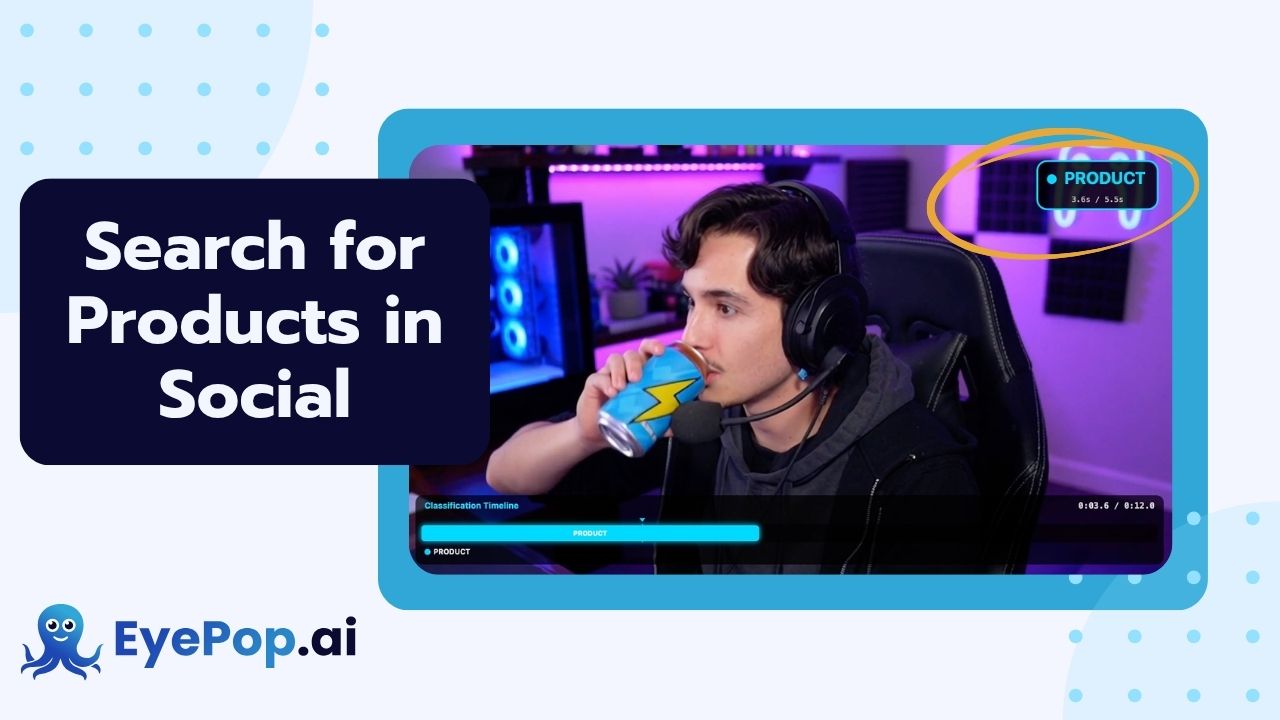
Tracking product placement and brand visibility in organic video footage means ensuring contracted items appear correctly, while also discovering organic appearances in UGC (user-generated content). Manually scrubbing through hours of influencer vlogs, livestreams, or social media feeds to track when a product is visible is inefficient and unscalable. Being able to automatically verify when a sponsored product is shown or discover when it appears organically is vital for brand compliance, calculating marketing ROI, and identifying new brand ambassadors. The Find Events task on the Abilities tab can act as a tool, determining if a video contains a specific branded item and locating those occurrences throughout the timeline.
For example, whether during a sponsored broadcast or an organic viral video, a specific segment of footage should be flagged with the label product if it clearly shows the dedicated product, in this case, a neon-blue aluminum soda.
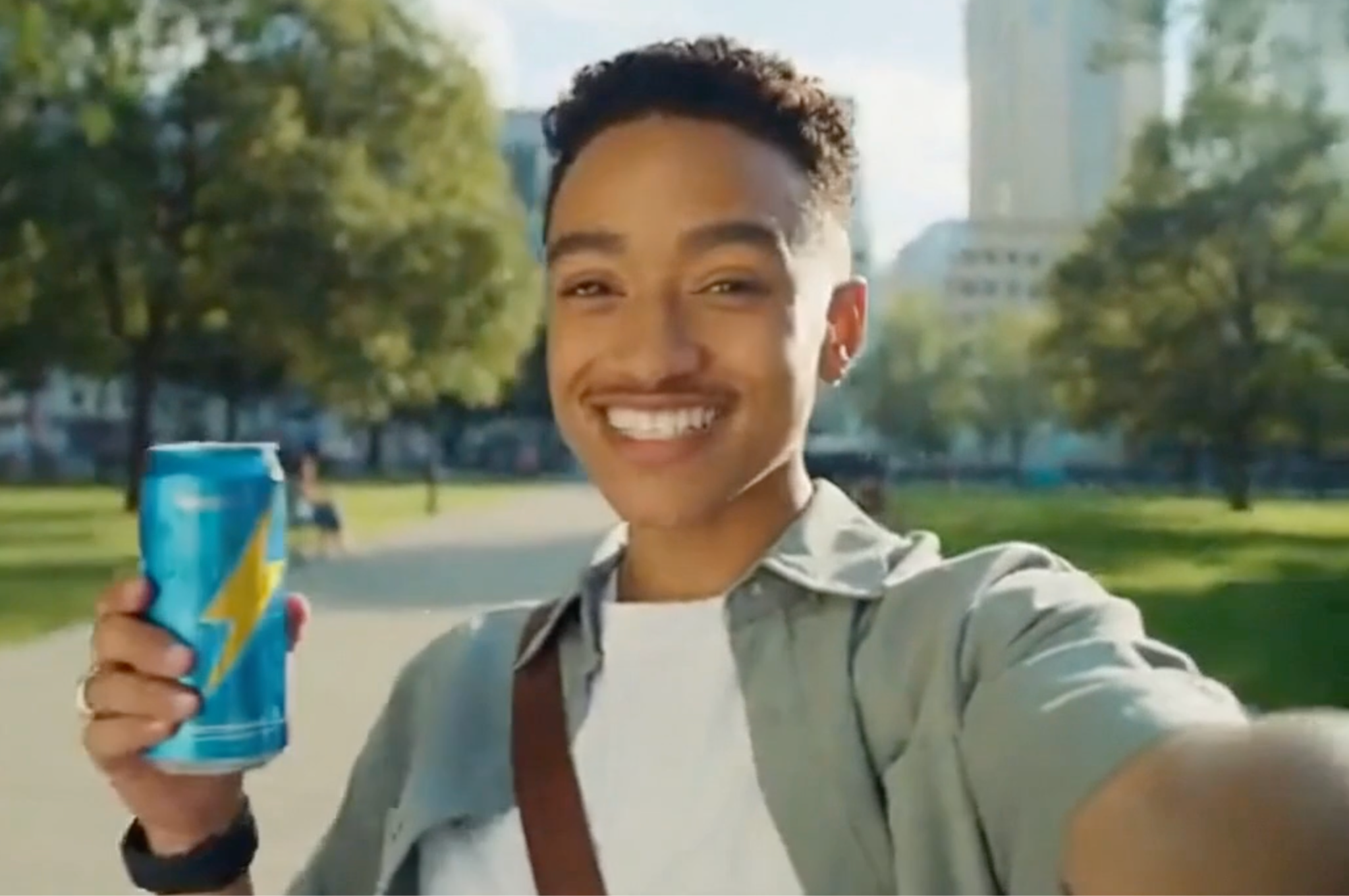
We will need to separate normal content, standard room backgrounds, and/or other products from the exact moments this specific brand can be physically visible and identifiable on screen.
Our expected inputs are videos, and the expected output will be the timestamps identifying exactly when the target drink appears throughout the footage.
UI Tutorial
Step 1: Create an Ability
Go to the Abilities tab and select the button Create Ability. Get early access to Abilities here >
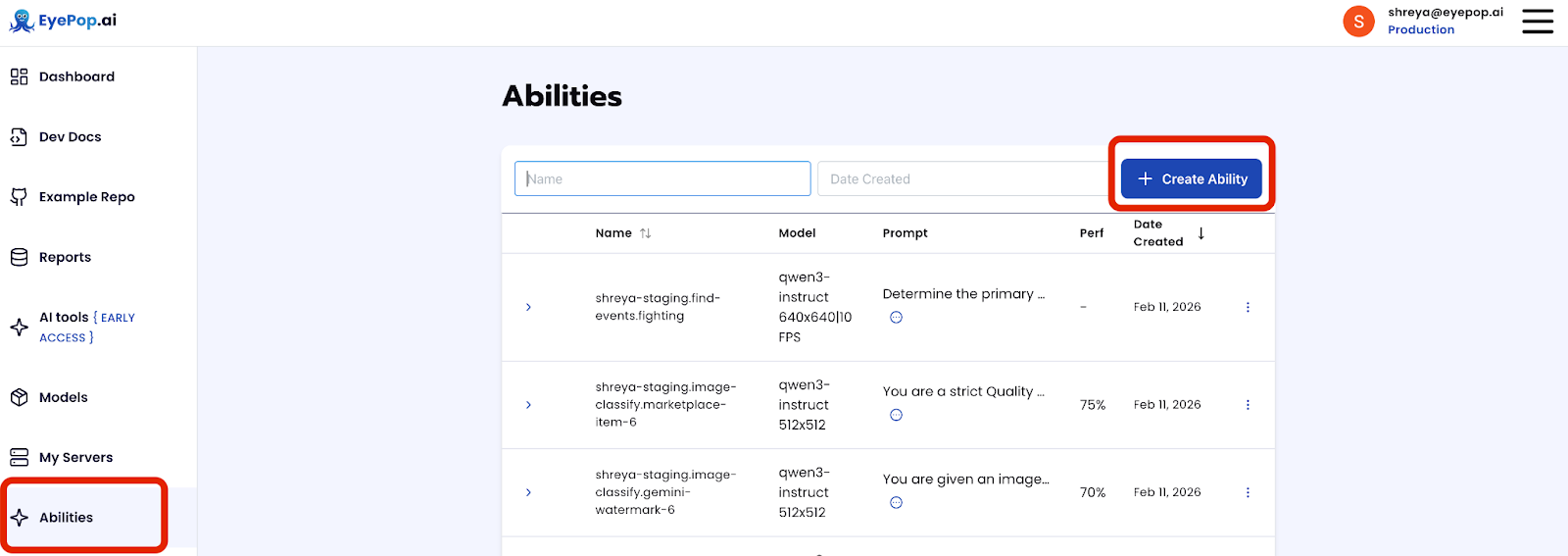
Fill out basic information about the ability such as its name and the description of the task itself. Since we are classifying events in a video, select the Task Type as Find Events.

Step 2: Task Configuration
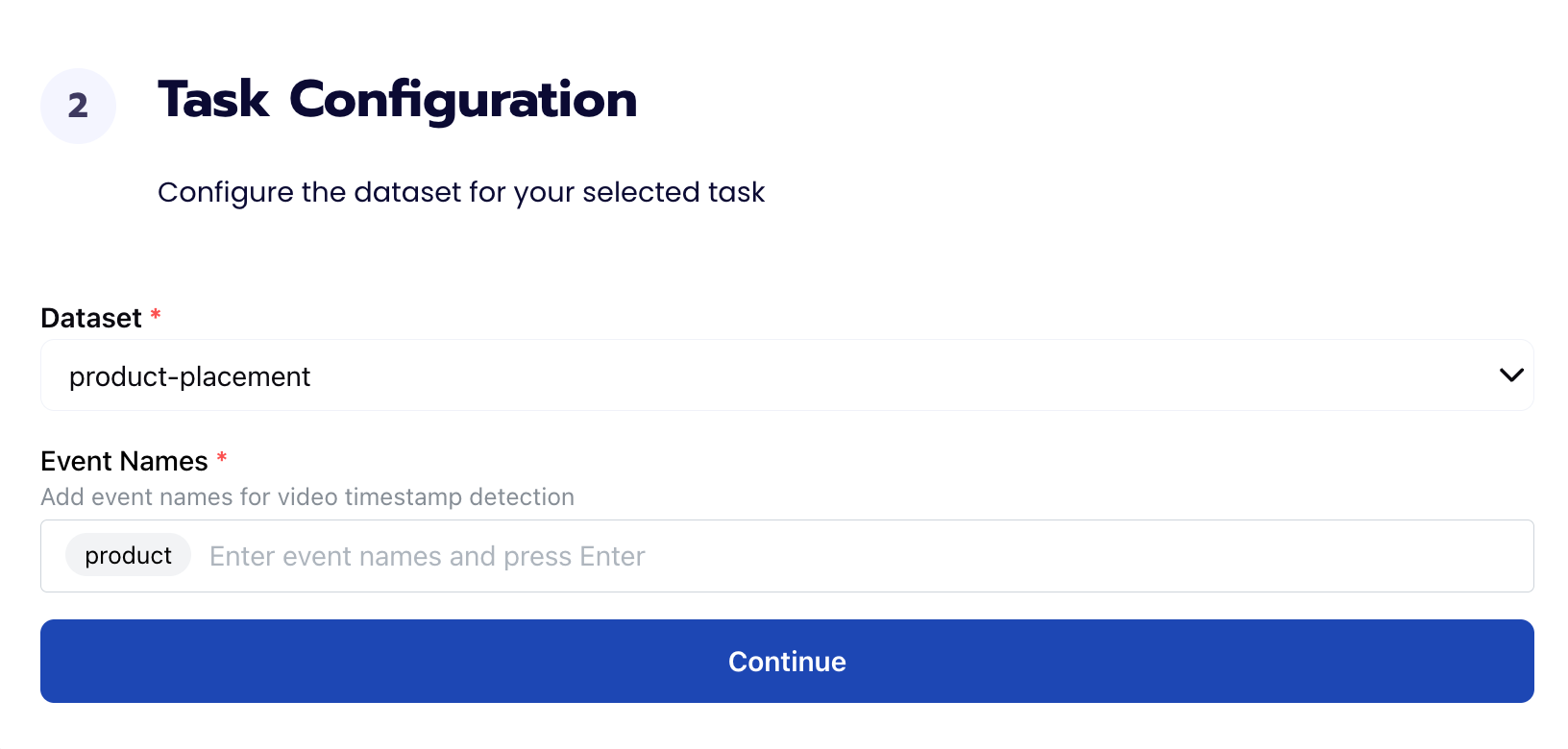
To configure the task, we need to select a dataset for the specific task. If you have already uploaded your videos in a dataset simply select the name of your dataset. However, if you haven’t already done so then select <New Dataset> and upload your videos, label them by identifying when the brand’s product appears in the broadcast, and create a label product in Event Names.
Step 3: Configuration
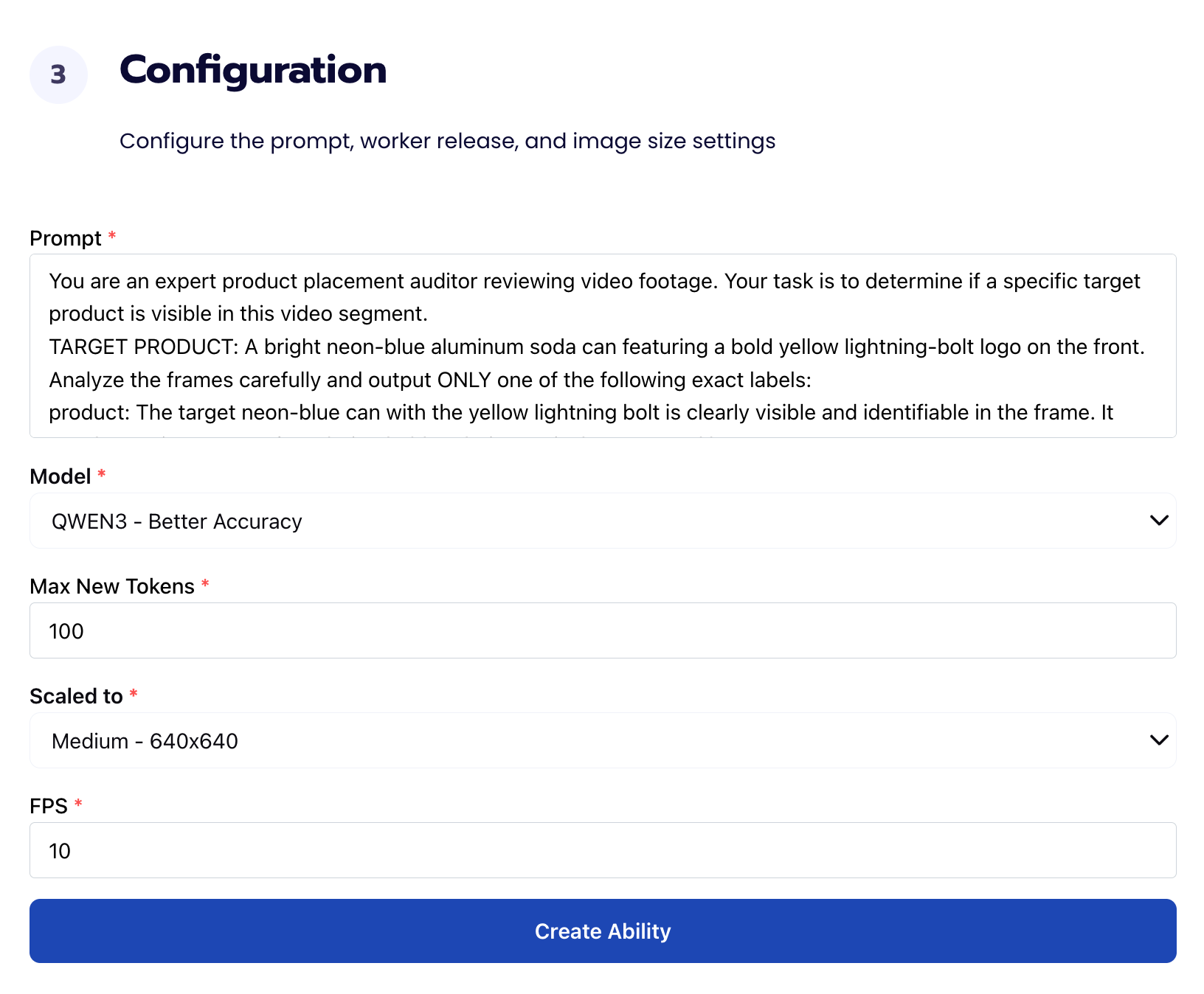
Our next step is to configure the prompt, select the model, and image size. For this use case, we recommend using the below prompt and settings for highest accuracy and best results. Replace the TARGET PRODUCT section with your product’s information.
Prompt:
You are an expert product placement auditor reviewing video footage. Your task is to determine if a specific target product is visible in this video segment.
TARGET PRODUCT: A bright neon-blue aluminum soda can featuring a bold yellow lightning-bolt logo on the front.
Analyze the frames carefully and output... Get early access to Abilities here >
Step 4: Run Evaluation
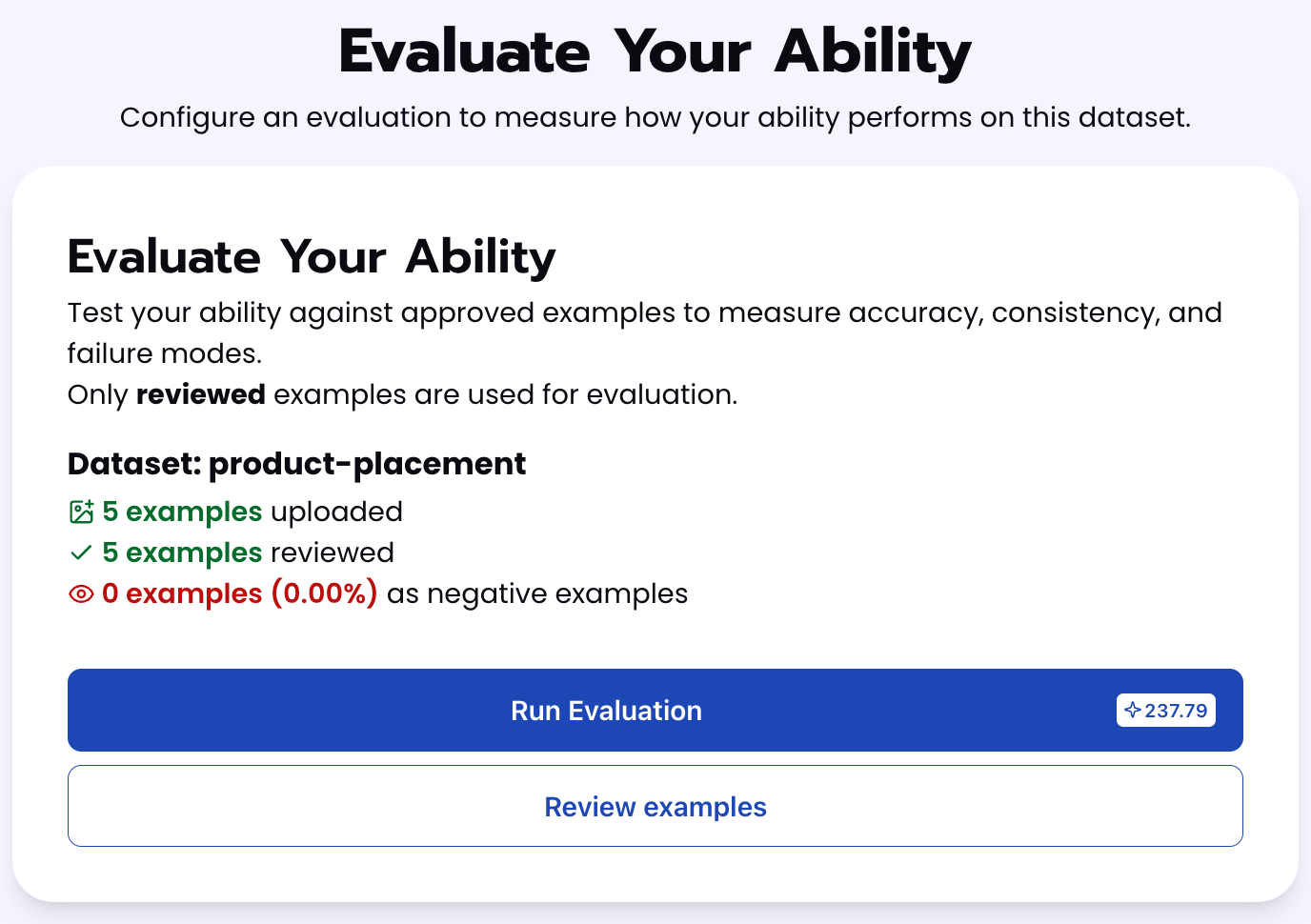
To check how well the prompt does against the dataset, our next step is to run the evaluation. If needed, review the examples in your dataset to ensure all necessary images can be used in the evaluation.
Step 5: Check Evaluation
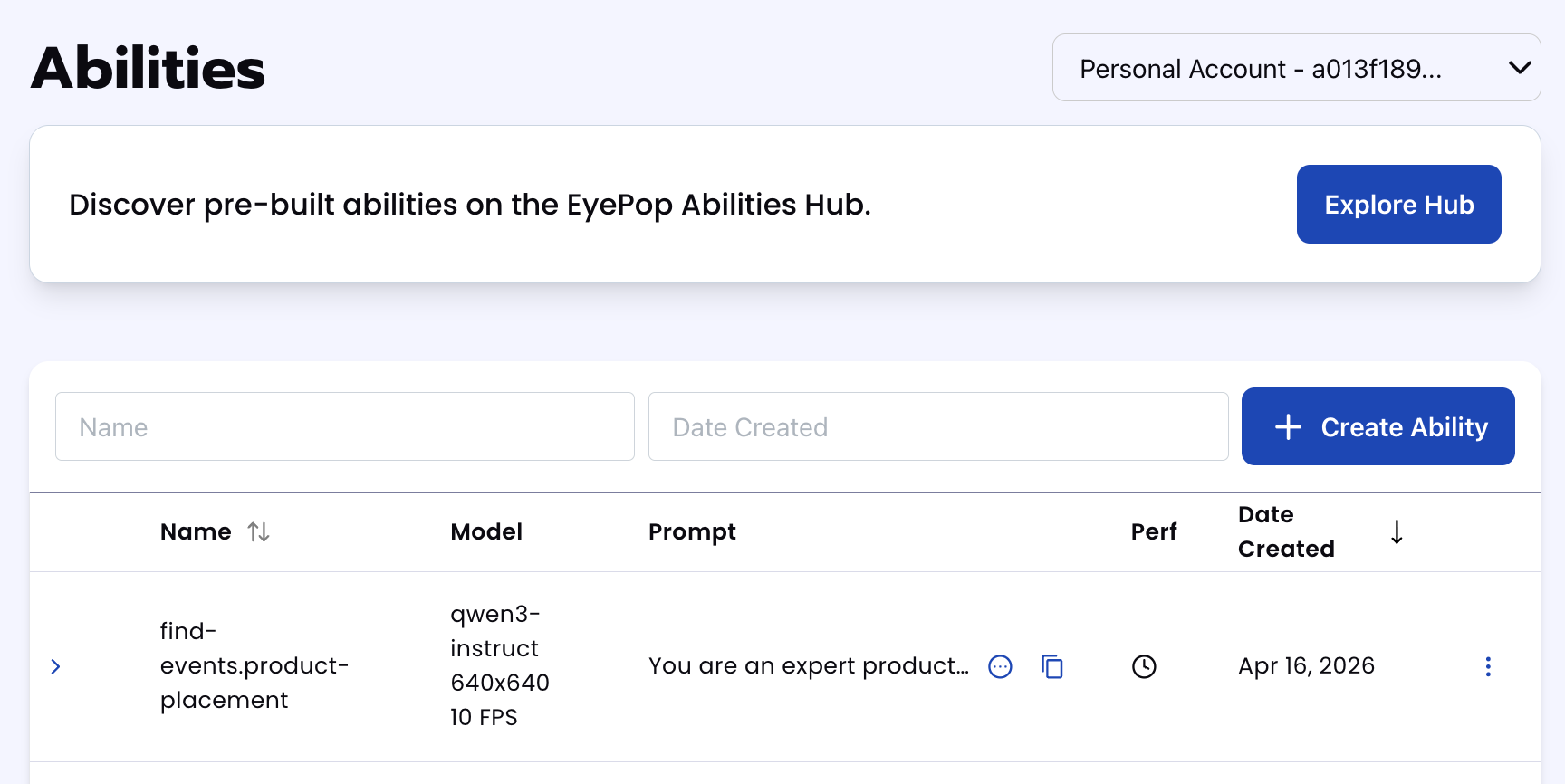
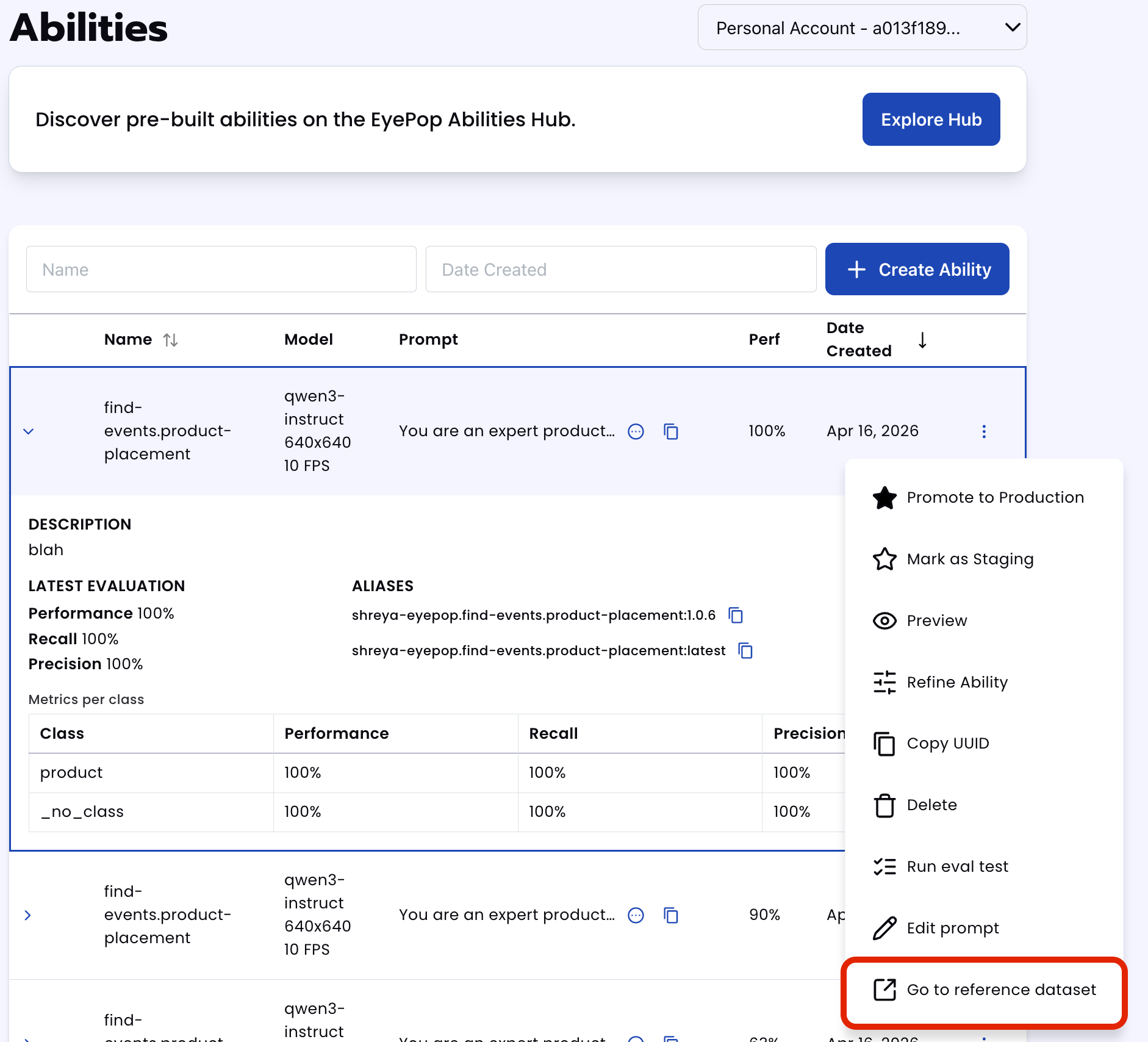
All evaluations can be reviewed in the Abilities tab by clicking the dropdown arrow next to the associated ability-alias. Evaluations can take around 15-20 minutes to complete based on the size of the dataset.
In addition to the performance, recall, and precision percentages on the abilities tab, you can see a visualization of what the model predicted by revisiting the dataset. Click on the three dots and select “Go to reference dataset”.
Select one of the videos in the dataset and click on the review button.
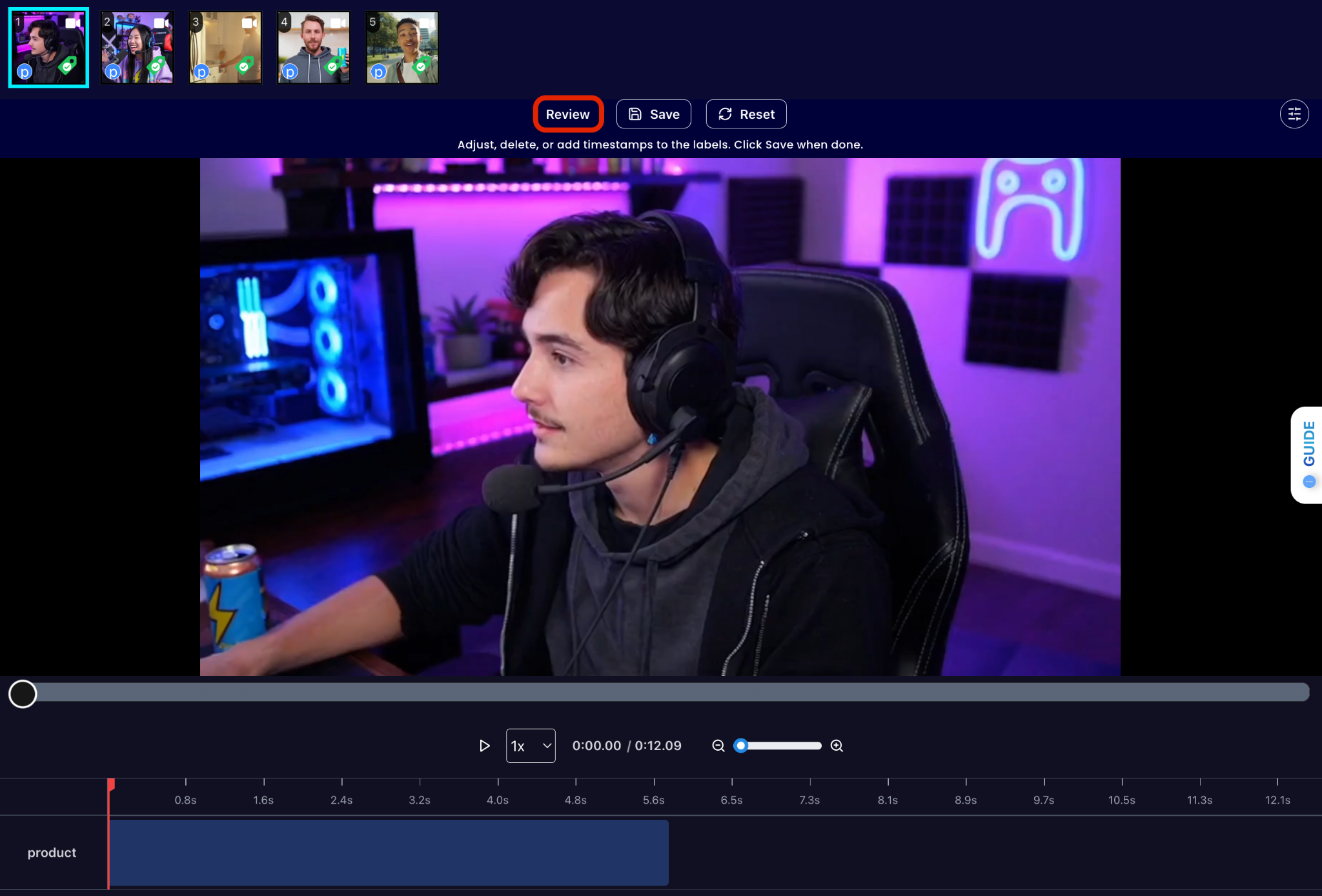
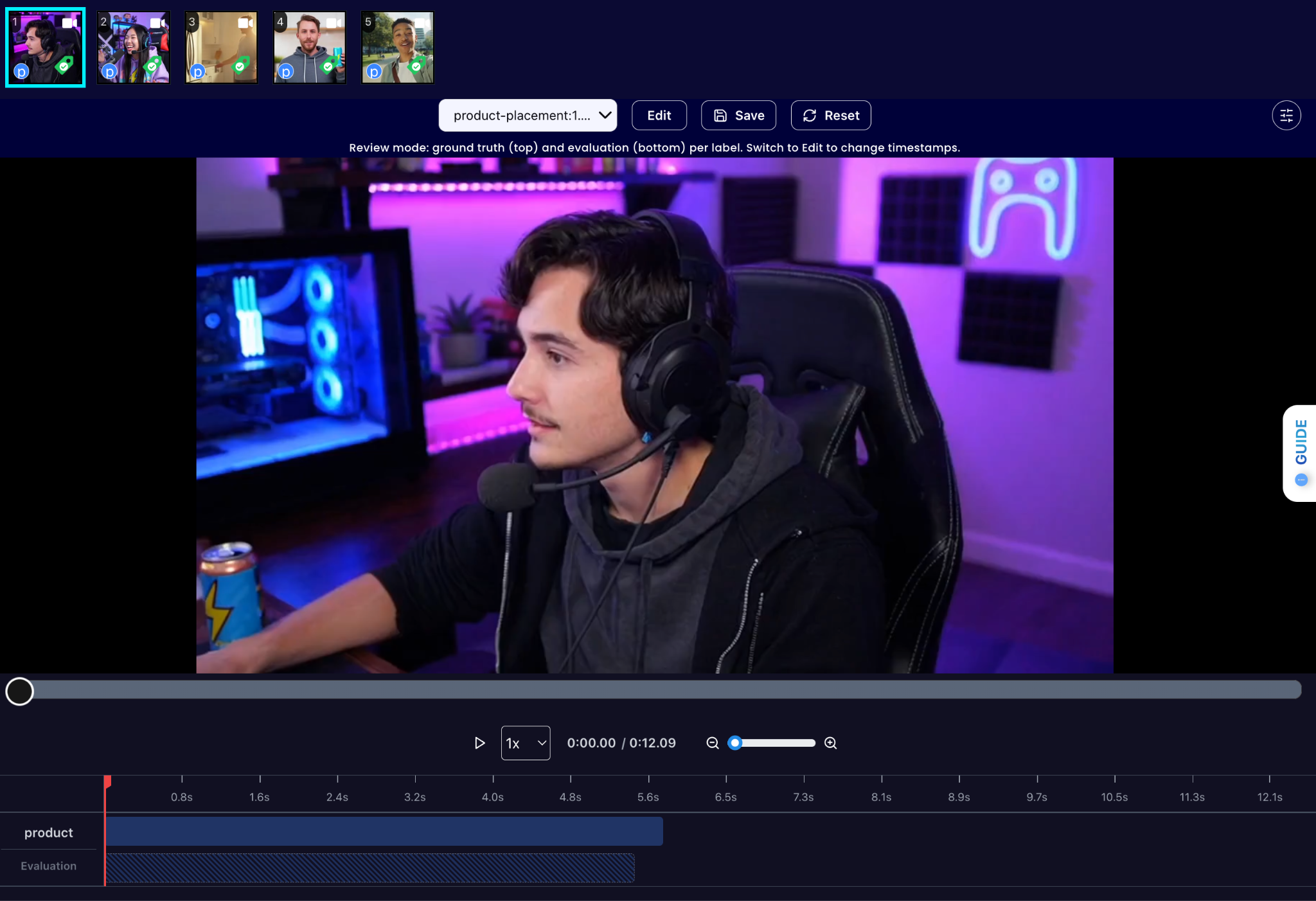
After running the evaluation you can see what the model labelled as product and compare it to what you labelled. With this, you can improve your prompts and thus improve your accuracy.
Tips for Accuracy
- Define "Edge Cases" The key to high accuracy is a deep understanding of your specific acceptance criteria. In a marketplace context, the line between "acceptable" and "rejected" can be thin. You must be explicitly clear about where that line is drawn.
- Updating FPS Depending on the size and location of the logo you are trying to find, update the FPS accordingly. For smaller logos use a smaller FPS (3-5) and for larger logos that appear for longer use 6-10.
Get early access
Want to move faster with visual automation? Request early access to Abilities and get notified as new vision capabilities roll out.